Sign In and Connect AI
What this chapter covers
The first time you launch PAVE you land on the sign-in screen. This chapter covers signing in with your email address until you reach the Workspace screen, and connecting Claude, which is required before any documents can be generated.
- Audience: users who have installed PAVE and are launching it for the first time
- Prerequisites: an internet connection, an email address where you can receive a one-time code, and a Claude subscription
You need a Claude subscription (not an API key). PAVE signs in to Claude with its own subscription token; there is no place to enter an API key. Until Claude is connected, workflow runs are blocked — the Run panel shows Running the workflow requires a Claude connection · Connect → and Start run is disabled. Ingest still runs without a connection but leaves a
not connectedwarning.
Sign in with your email
- In the Login or Register card, type your email address in ① Email address.
- Click ② Continue. While the request is in flight the button reads Working….
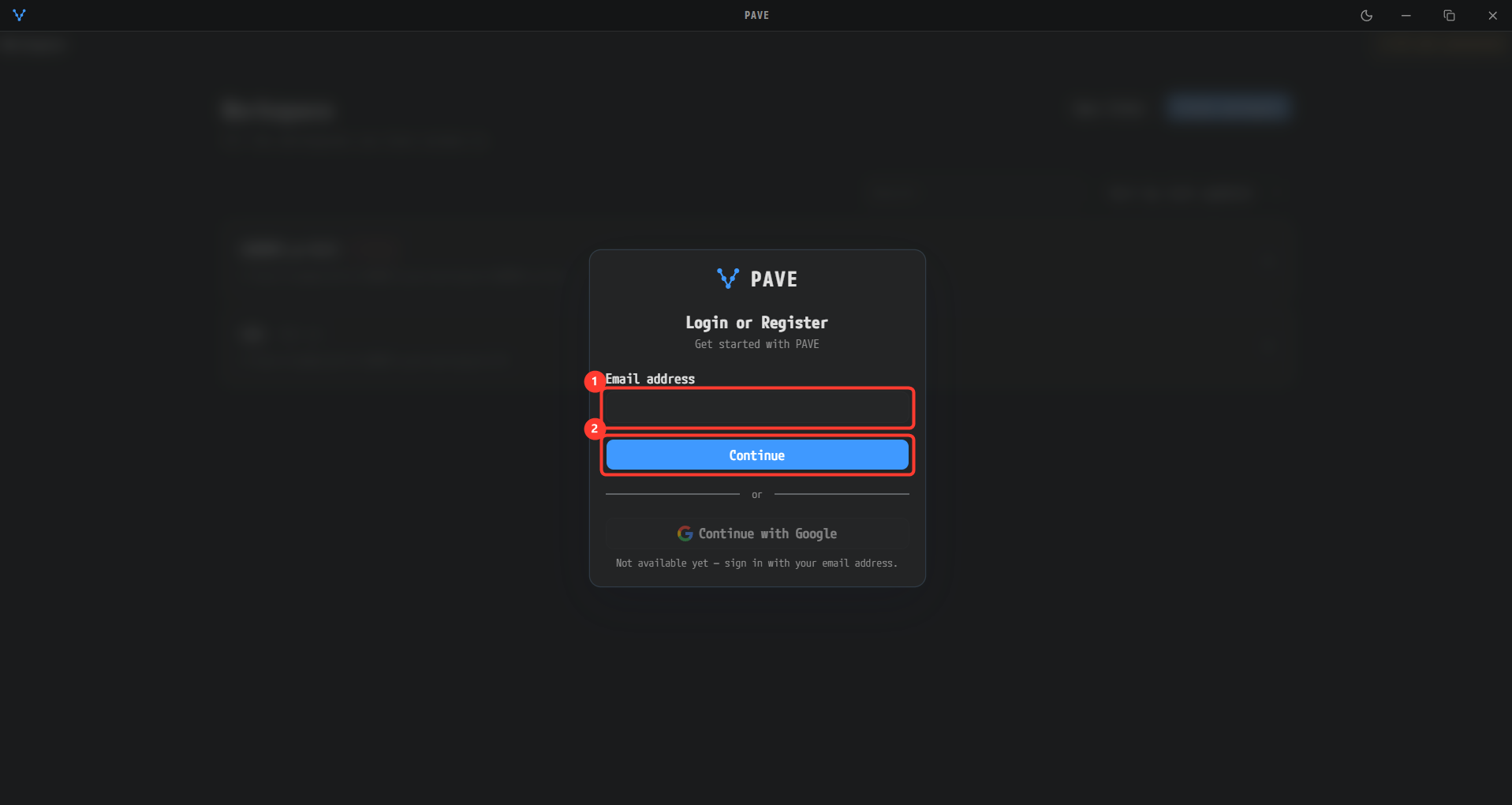
The first-run screen. Enter your address in ① Email address and click ② Continue, and a one-time code is sent to that address. Continue with Google below is not available yet (Not available yet — sign in with your email address.).
- A second field, Code, appears, and under it We sent a one-time code to followed by the address you entered. Enter the one-time code from the email.
- The button changes to Sign in. Click it to finish signing in and enter the Workspace screen. If you typed the wrong address, start over with the Use a different email link.
An account is created automatically on your first sign-in, and a 14-day trial starts with it. The remaining time is shown as Trial with the days left (for example 12 days left) in the menu that opens from the avatar (the first letter of your email) at the right of the header. If the code could not be sent or is rejected, the card shows Could not send the code. / That code was not accepted., and Too many requests. Please wait a moment and try again. if you ask too often.
Connect Claude
- At the right of the header on the Workspace screen there is an amber AI not connected chip. Hovering it shows the tooltip Generation runs cannot start / Click to connect an AI account. Click the chip.
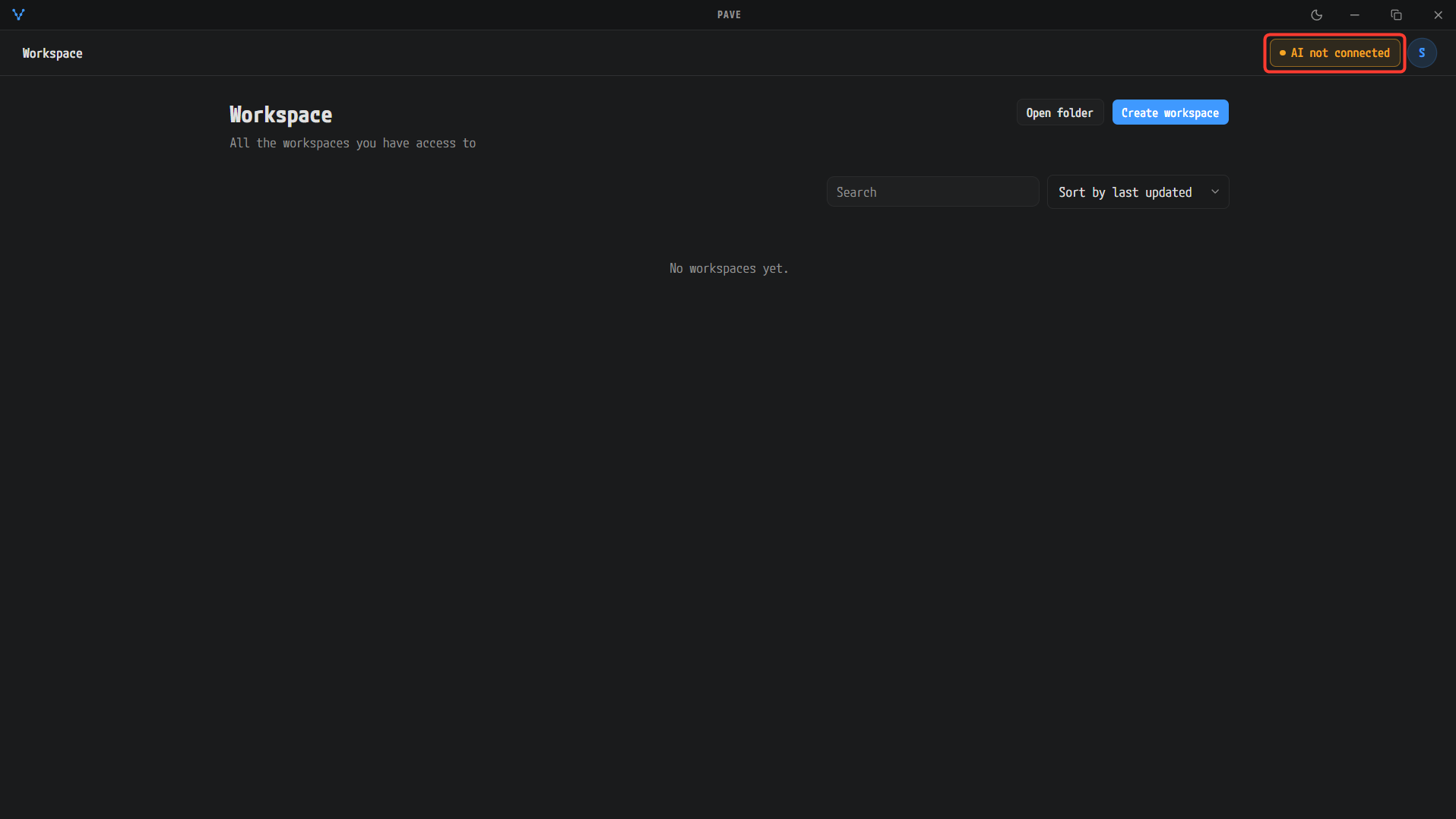
The Workspace screen right after signing in. The AI not connected chip at the right of the header is amber, telling you Claude is not connected yet.
- The Connect AI popover opens. Use one of the two methods.
- ① Log in with Claude — a browser opens for you to authorize with your Claude account. PAVE waits up to three minutes, and meanwhile the button reads Waiting for browser login…. This method does not need Claude Code installed on the PC.
- ② Paste a token — run
claude setup-tokenin a terminal, paste thesk-ant-oat01-…token it prints into the field, and click Connect. This method needs Claude Code installed on the PC.
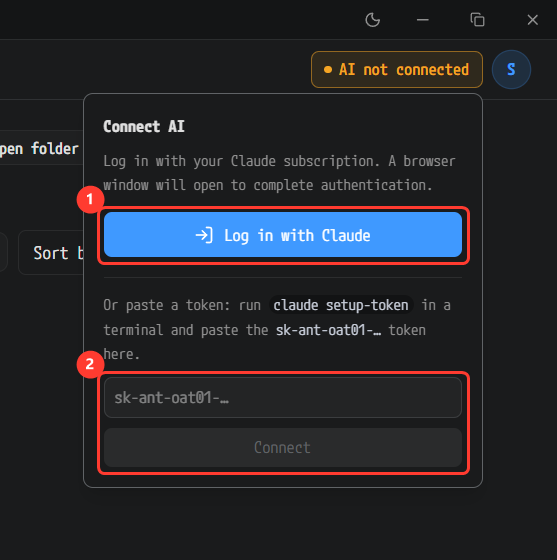
The Connect AI popover that opens from the chip. ① Log in with Claude goes through the browser authorization; alternatively ② paste a token made with claude setup-token into the field below and click Connect.
- If you chose Log in with Claude, the Claude authorization page opens in your browser. It says that Claude Code is requesting a connection to your Claude account; click the approve button.
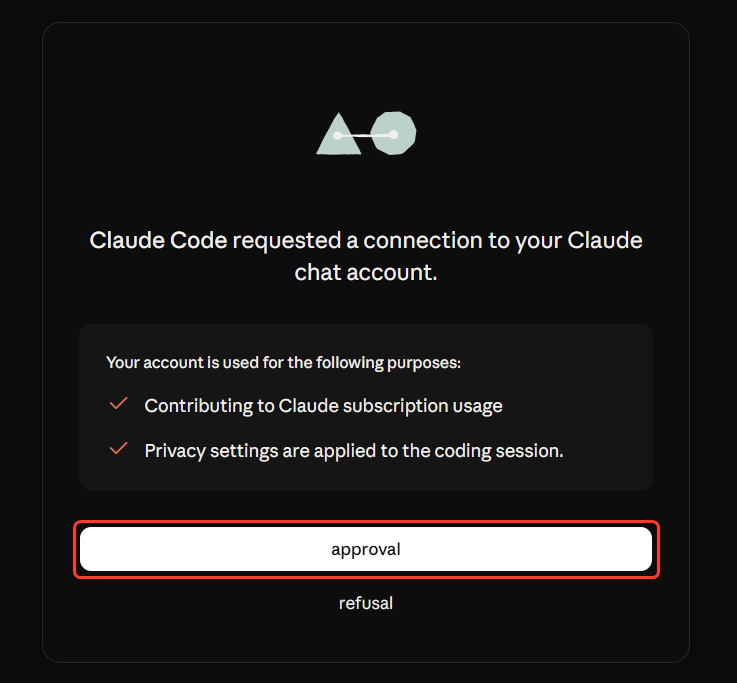
The Claude authorization page that opens in the browser. Click the approve button under the notice that Claude Code is requesting a connection to your Claude account. The page follows your browser language, so the exact wording differs; this screenshot was taken with the page translated into English.
- After approval you are back in PAVE. The chip in the header becomes a single green dot, and hovering the dot shows the tooltip AI connected / Generation runs can start. There is no separate notification (toast) for the connection; the green dot and its tooltip are the only indication.

Once connected, only a green dot remains where the AI not connected chip was. Hovering the dot shows the AI connected / Generation runs can start. tooltip. No completion notification (toast) appears.
The token is stored encrypted on this PC, so the connection survives restarting the app. To disconnect, open the avatar → Settings → AI and click Log out (your workspaces and documents are untouched). Log out in the avatar menu signs you out of your PAVE account, which is a different thing from disconnecting Claude.
Next steps
You are signed in and Claude is connected. Go to Create a Workspace to create your first workspace.