Build the Knowledge Base
What this chapter covers
Source Ingest on the Knowledge tab reads the converted Markdown and builds the knowledge base (ontology pages). This chapter explains how to run Source Ingest, how to read the screen while it runs and after it completes, how to check the pages it created, and how to caption the figures extracted from the documents.
- Audience: users who have finished converting their input documents to Markdown
- Prerequisites: the
Wiki/raw/<document>/<document>.mdcreated in the previous chapter
Ingest and Caption figures call Claude and are billed. Ingest does not check whether AI is connected before it runs; if you run it without a connection, the model calls fail and a warning containing
not connectedis left behind. Make sure the AI status in the header is a green dot before you start.
Run Source Ingest
- Click the ① Knowledge tab. The rail on the left has four icons (Knowledge, Ingest, Index, Graph); the second one, Ingest, is the Source Ingest screen.
- In the Input Documents table at the bottom, check that the Status of the converted
.mdfile is Ready. Ready means a supported format that has not been ingested yet (Ingested = already ingested, Skipped = a metadata file such as the conversion log, Unsupported = an extension outside the supported set). - Choose the model and effort in the two ② dropdowns at the top right. The defaults are Default · sonnet and Default · high; the model can be opus / sonnet / haiku and the effort low / medium / high.
- Click ③ Run Ingest. While it runs, the button reads Ingesting.
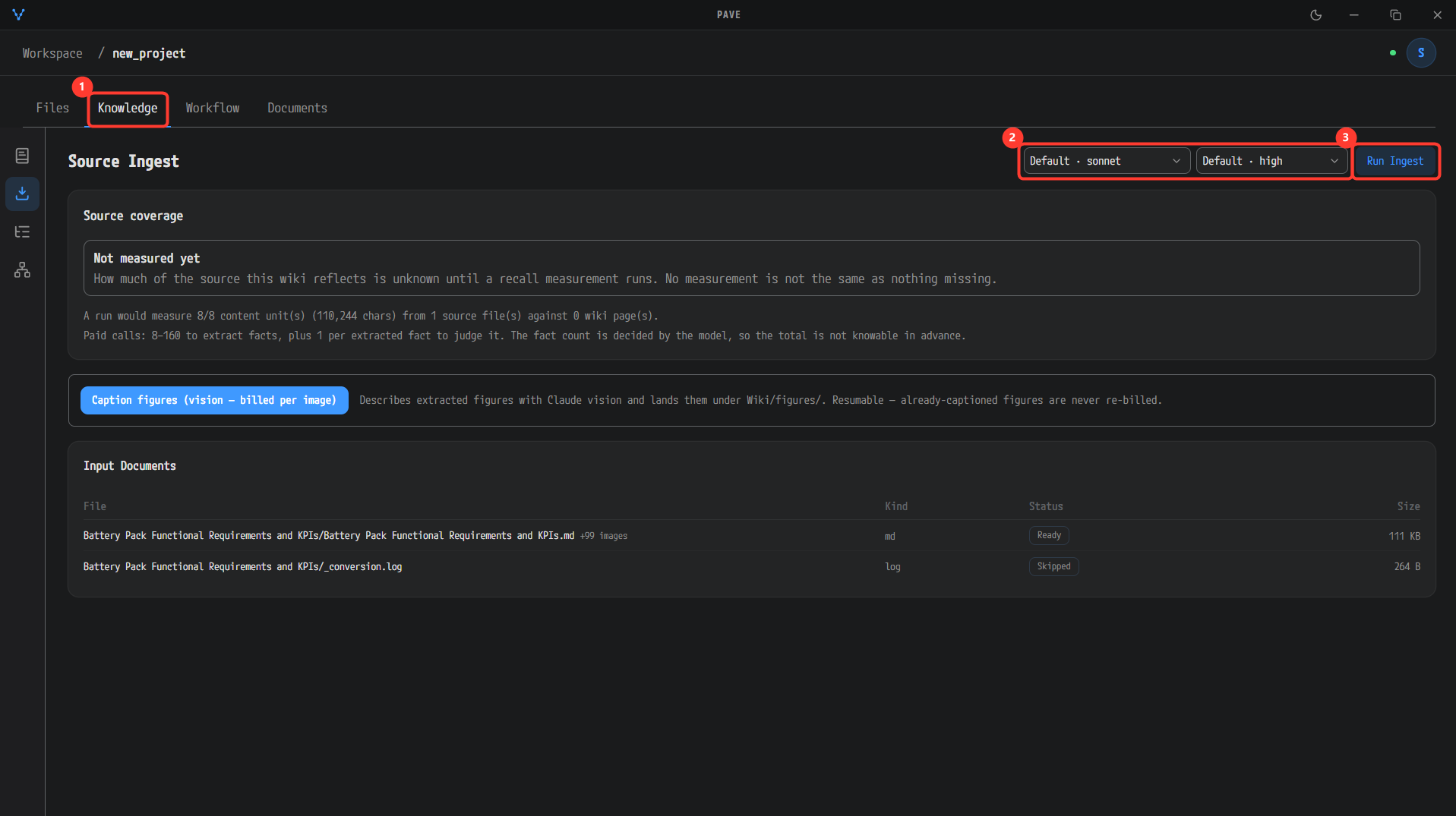
The Source Ingest screen of the ① Knowledge tab. ② The model (Default · sonnet) and effort (Default · high) dropdowns and ③ the Run Ingest button. In the Input Documents table below, the converted .md is Ready and _conversion.log is Skipped. Source coverage shows Not measured yet because nothing has been measured.
While it runs
When the run starts, a Knowledge ingest progress banner appears at the top of the screen. The progress line shows the phase, the count and the current file, like ingest 0/1 · extracting <file>, with the chosen model and effort underneath. The banner has these buttons.
- Pause — stops at the next boundary after the in-flight Claude call completes, so nothing already billed is lost.
- Stop — stops the run.
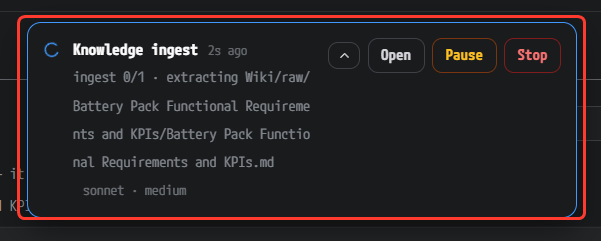
The progress banner. The Knowledge ingest job is at ingest 0/1 · extracting Wiki/raw/…/Battery Pack Functional Requirements and KPIs.md, and the line below shows sonnet · medium (this example was run with the effort changed to medium). Use Open / Pause / Stop on the right to control the job.
If you quit the app while an ingest is paused, the progress stays on disk. When you reopen the app, an Unfinished ingest found banner shows how many windows are done (
N/M discovered window(s) done) and a Resume button, and the completed parts are not billed again.
Read the completion screen
- When the run finishes, the ① Ingest complete panel appears with Preserved progress: N/N discovered window(s). Completed work is kept on disk. The line under it is the result summary (for example Ingested 128 page(s), 4 warning(s).).
- The ② warning list is informational, not a failure. The four you see most often:
| Warning (beginning) | Meaning |
|---|---|
format profile … | The requirement conventions and table shapes of that file could not be inferred. The file is still ingested, with less structure. |
LLM call #N failed transiently (retry i/N) | One call failed and was retried. Harmless if the run completed. |
block delimiter glued mid-line … | The model omitted the newline before a page delimiter, so that page was absorbed into the previous one. |
source_ref gate: injected N [INFO-INSUFFICIENT: source_ref missing] mark(s) … | Paragraphs written without grounding were marked. The pages are kept, not dropped. |
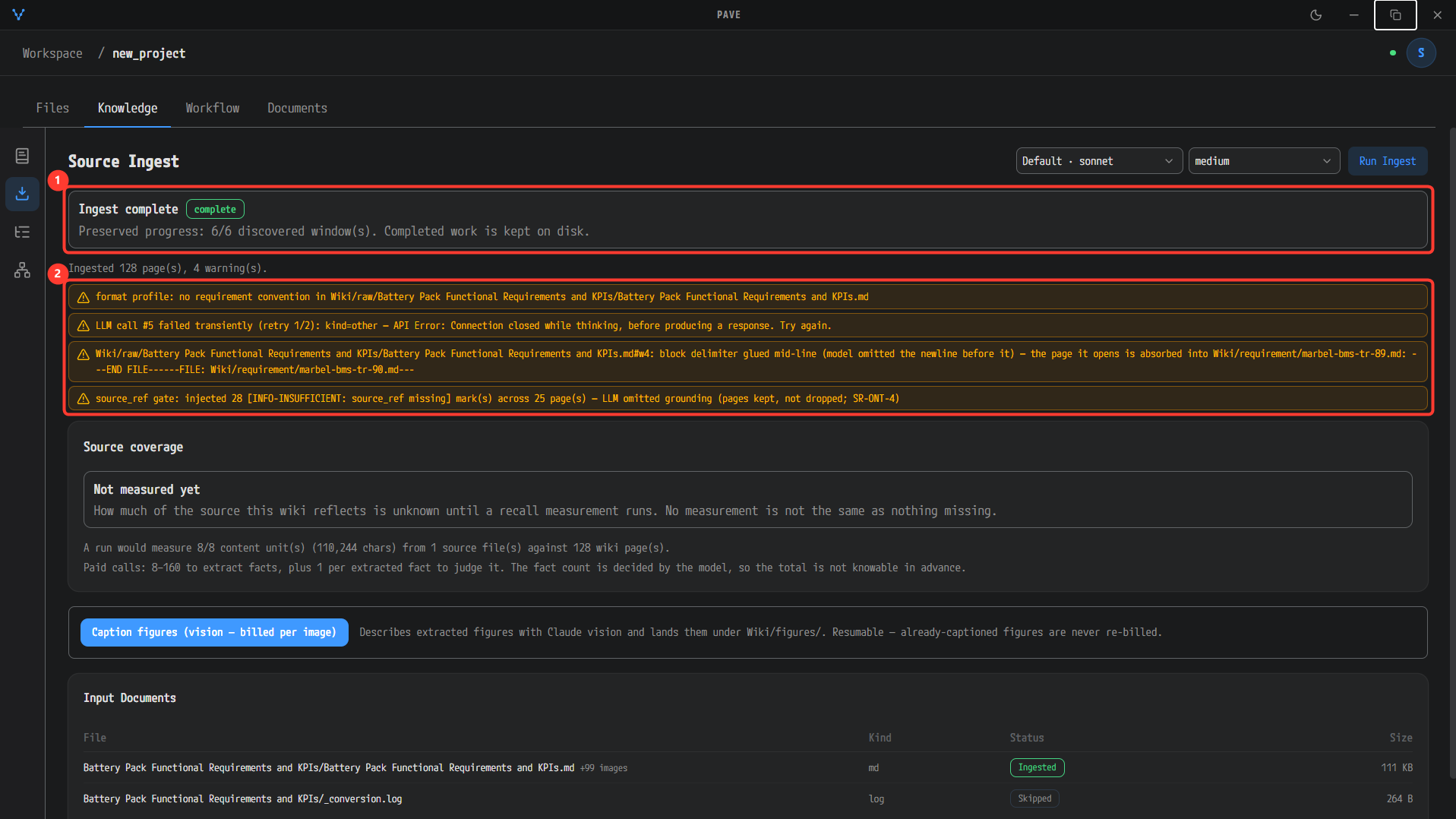
① The Ingest complete panel — Preserved progress: 6/6 discovered window(s). Completed work is kept on disk. and, under it, the summary Ingested 128 page(s), 4 warning(s). ② The four warnings are one of each kind from the table above. The .md in Input Documents now reads Ingested, and the Source coverage prediction now ends with against 128 wiki page(s).
Check the pages that were created
- Click the first icon in the rail, ① Knowledge. The page list appears on the left (grouped by type: CONCEPT, REQUIREMENT …), the RELATIONSHIP GRAPH in the middle, and the content of the selected page on the right.
- Each paragraph of a page ends with a ②
(source_ref: <file> <location>)chip. The chip is the input document and location that paragraph is grounded on. A paragraph written without grounding carries an[INFO-INSUFFICIENT: …]mark instead.
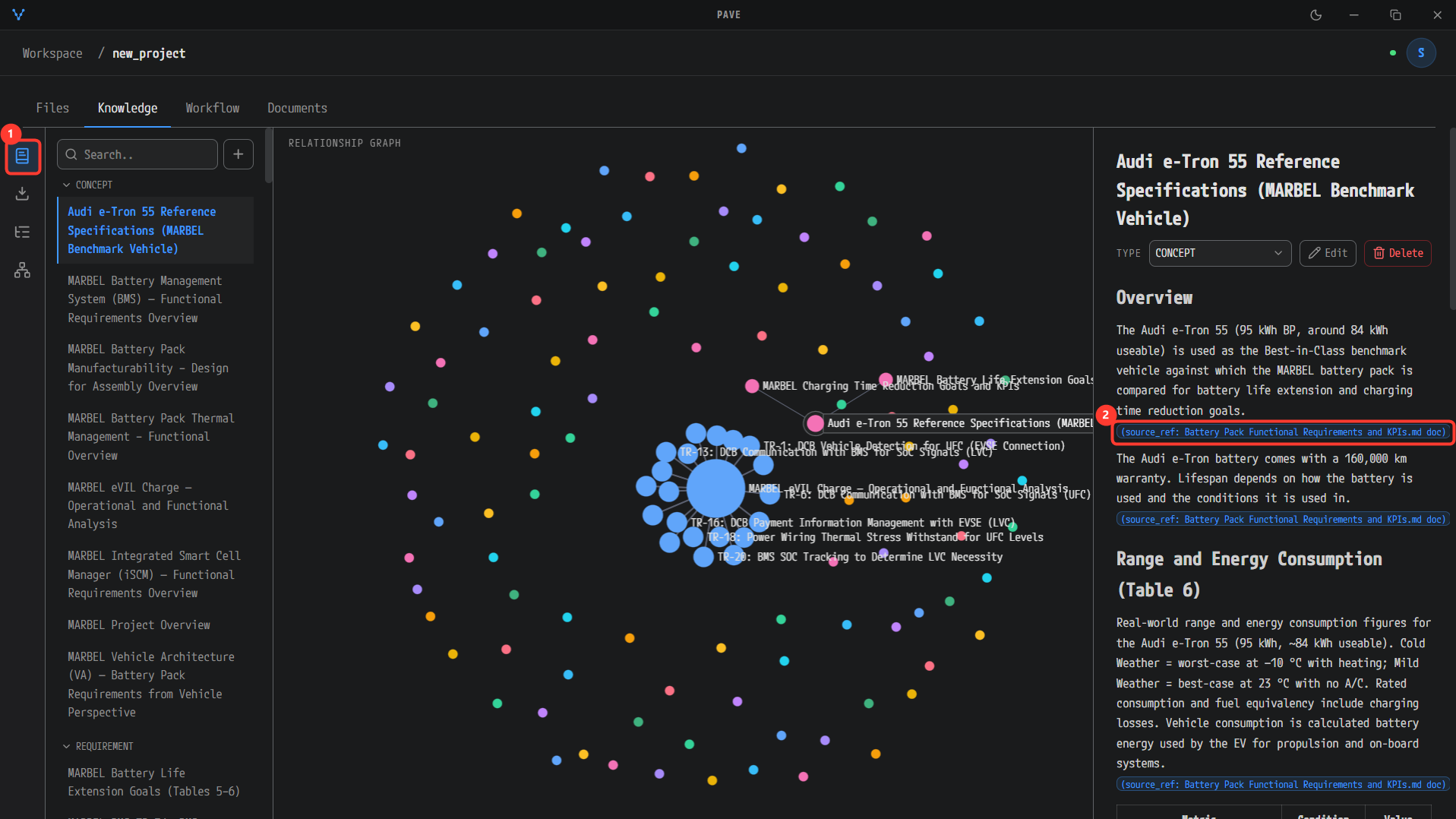
Clicking the ① Knowledge icon in the rail switches to the three-column view. The list on the left is grouped by type such as CONCEPT and REQUIREMENT, and the RELATIONSHIP GRAPH in the middle shows how the pages relate. Every paragraph of the page on the right (type dropdown CONCEPT) carries a ② (source_ref: Battery Pack Functional Requirements and KPIs.md doc) chip that tells you which document it came from. Edit / Delete on the TYPE row let you change or remove the page yourself.
Caption the figures (Caption figures)
The figures extracted into Wiki/raw/<document>/images/ during conversion have no descriptions yet. Caption figures describes each figure with Claude vision and appends the descriptions to Wiki/figures/<document>.md.
- On the Source Ingest screen (the Ingest icon in the rail), click the Caption figures (vision — billed per image) button.
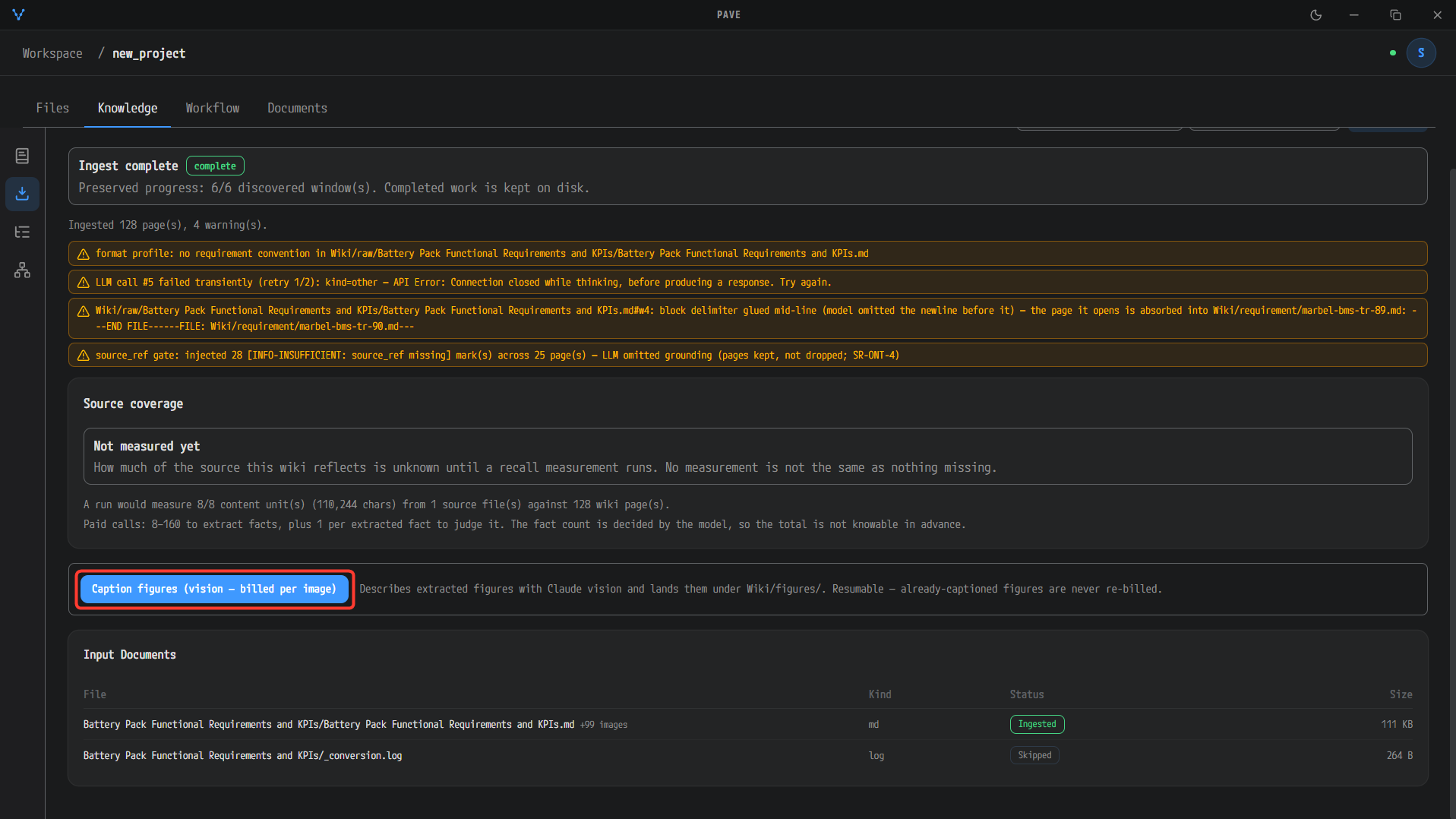
The Caption figures (vision — billed per image) button below the completion panel. As the note next to it says, it describes the extracted figures with Claude vision, puts them under Wiki/figures/, and never bills a figure that already has a caption.
- While it runs, the button changes to Captioning figures… and is disabled. When it finishes, a result line starting with Last run: appears under the button with the number applied, how many were legible or info-insufficient, how many decorative figures were skipped, and how many calls were billed.
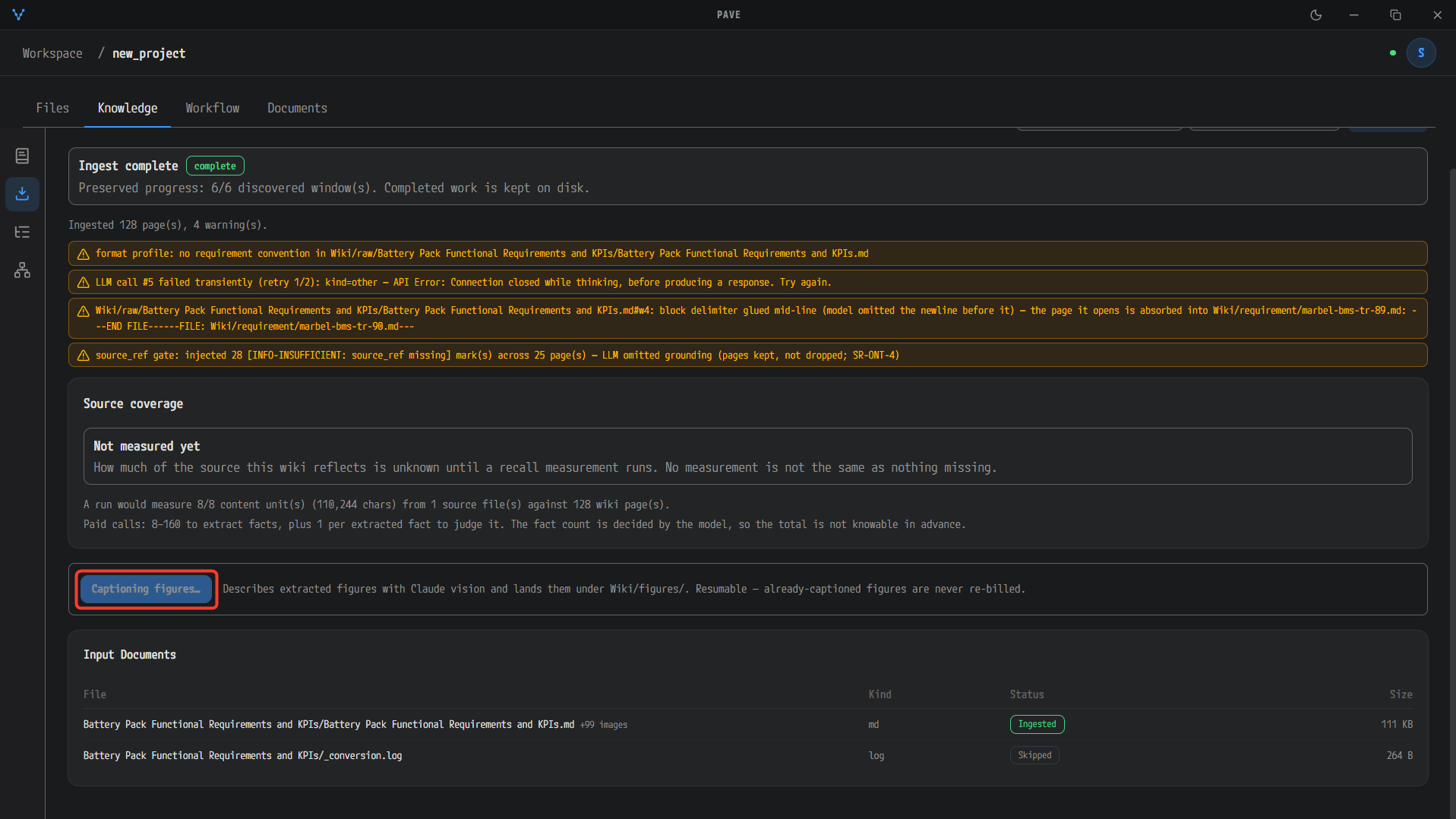
While it runs, the button reads Captioning figures…. You cannot click it again until it finishes.
Each image is billed. The same figure is never billed twice, though — a figure recorded in the processing ledger is skipped before any call, and even without the ledger a marker inside the
Wiki/figures/file prevents it from being appended again. If the job stops halfway, clicking again processes only the remaining figures.
Next steps
The knowledge base is ready. Go to Run the Workflow to start generating A-SPICE work products with Run on the Workflow tab.