Import and Export
What This Chapter Covers
This chapter explains how to bring external files (ARXML, DBC) into a PAIO project, and how to export the project model back out as AUTOSAR ARXML. It also covers the two kinds of dialog that appear during conflict resolution, the Extract operation that cuts out a single ECU, the separate ECUC import, and the preconditions and actual error messages for each operation.
- Who this is for: users moving ARXML or DBC files from another tool into PAIO, or handing a PAIO model over to another tool.
- Prerequisites: a workspace must be open and the workspace must contain at least one project (04. Workspaces and Projects).
- For the folders a project creates on disk, see 04. Workspaces and Projects, section 4.4.
13.1 At a Glance
Here is where to start for each task.
| What you want to do | Where to start |
|---|---|
| Import an ARXML or DBC file into a project | Right-click the project node in the Explorer ▸ Import |
| Export the whole project as ARXML | Right-click the project node in the Explorer ▸ Export |
| Export a single ECU | Right-click the ECU node in the IVC editor ▸ Extract ECU |
| Export a single HPC (Machine) | Right-click the HPC node in the IVC editor ▸ Extract Machine |
| Import ECUC configuration values only | Right-click design ▸ Module ▸ Configuration ▸ Import ECUC Configuration |
| Add the PopcornSAR AP base configuration | The PARA Platform button in the Machine Configuration dialog |
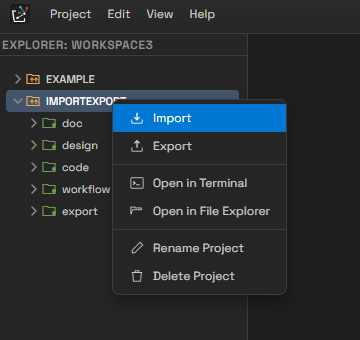
Context menu of the project node — the entry point for import and export
License Conditions
The export family (project Export, Extract, DataType Export) requires both an active license and online server validation. The import family, by contrast, works even when the license has expired.
What appears on screen in each situation is as follows.
| Situation | What is shown |
|---|---|
| License expired / read-only | An upgrade notice dialog appears. The export never starts |
| License valid but offline | The progress dialog ends with Export failed: OFFLINE_EXPORT_DENIED: A server connection is required |
| Server reports the plan as invalid | Export failed: PLAN_EXPIRED: Export is not permitted on this plan |
| Installation integrity check failed | Export failed: INTEGRITY_EXPORT_DENIED: Installation integrity check failed |
13.2 Importing ARXML and DBC
13.2.1 Procedure
-
In the Explorer, right-click the project node and select Import. The file selection dialog
Select files to importopens. -
Select the files. You can select several files at once, and you can mix ARXML and DBC. Multi-selection works the same as in your operating system's file dialog: drag across a range, hold
Ctrland click files one by one, or useShiftto mark the first and last file. The file dialog offers these filters.Filter Extensions All Supported Files .arxml,.dbcARXML Files .arxmlDBC Files .dbc -
When you confirm the file selection, all unsaved edits in every open project are written to disk first. The import rewrites model files and the open editors reload them from disk, so this step keeps unsaved edits from disappearing silently during that reload.
-
The progress dialog
Importing ARXML Filesappears. The stage names are shown in English asparsing→merging→resolving(while DBC files are read,copyingalso appears). You can stop the import with Cancel. -
Depending on the result, the import continues along one of three paths (13.2.3 to 13.2.5).
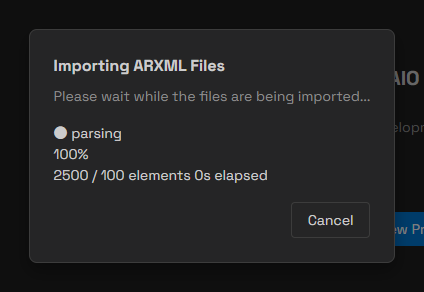
Import progress dialog — stage name, progress, and Cancel
If you click Cancel while the import is running, every file the import has already written is
restored to its pre-import state and the dialog closes silently. Only when a file could not be
restored does a toast report it: Import cancelled, but rollback could not restore: ....
Source files are read in place. They are not copied into the project's
import/folder. For details, see 4.4.
13.2.2 When an Import Is Rejected
Only one import can run at a time. If a previous import has not finished, the new import is rejected
and Import rejected: <reason>. Finish or cancel it first. appears as an error. The reason is one of
the following three.
| Reason string | Meaning |
|---|---|
an import is already running | Parsing or conversion is still in progress |
an import is waiting on the source-conflict dialog | The source conflict dialog is open and waiting |
an import is waiting on conflict resolution | The model conflict dialog is open and waiting |
13.2.3 Result 1 — Success
Import complete: N elements imported from M file(s) appears and the dialog closes automatically
after two seconds. The open editors reload the new content, and the dialog stays up until every
editor has finished reloading — this keeps you from editing a half-refreshed model.
Only the editors of the project that started the import reload. Editors of other projects in the same window are unaffected.
13.2.4 Result 2 — Import Source Conflicts
If several files selected in one go define the same element differently, the import stops before converting anything into the model and the Import Source Conflicts dialog appears. At this point nothing has been written to disk yet.
The title has the form Import Source Conflicts — N elements diverge across imported files.
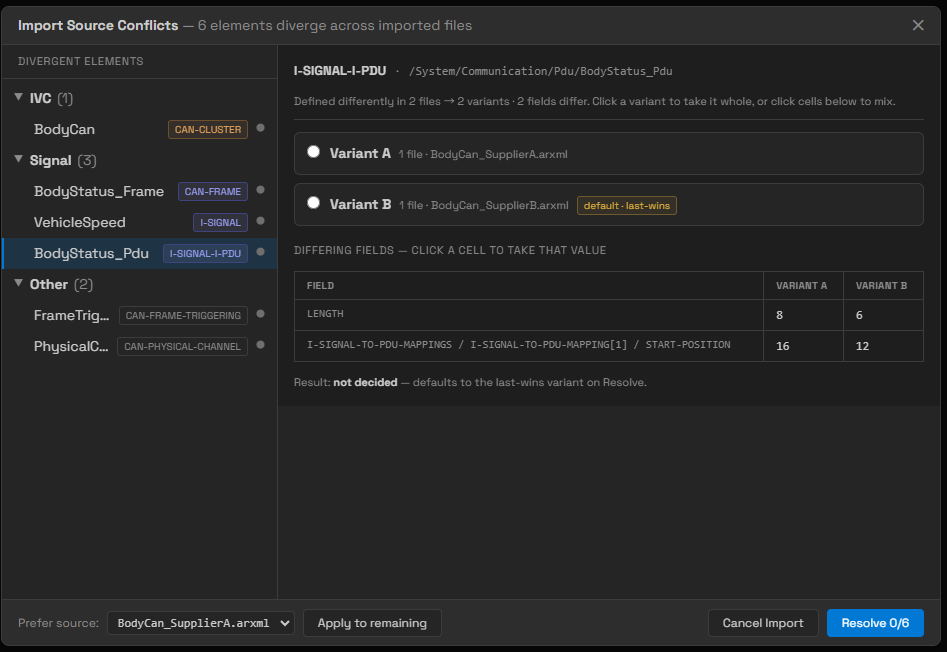
Import Source Conflicts — the per-area list, variant cards with the default badge, and the field table
-
Select an element in the Divergent Elements list on the left. The list is grouped by element kind into areas (IVC · Signal · SWC · Interface · Other, and others), and each row carries the SHORT-NAME, an ARXML element kind tag, and a dot showing whether the element has been decided.
-
The following guidance appears at the top right.
Defined differently in N files → M variants · K fields differ. Click a variant to take it whole, or click cells below to mix.Below it, the definitions that differ in content are listed as
Variant A,Variant B, and so on. The cards are ordered by how many files contain that definition, soVariant Ais not guaranteed to be the default. Only the variant that is taken when you decide nothing carries a badge. A conflict between ARXML files gets thedefault · last-winsbadge (the file read last wins); a conflict that arises when ARXML and DBC are imported together gets thedefault · earlier-winsbadge (the file read first wins). -
Click a card to take that variant whole.
-
In the
Differing Fields — click a cell to take that valuetable below, click a cell to change that one field to the value from that variant. Click a column header (Variant B, for example) to take that whole column.- If you click a cell before choosing any variant, the variant that cell belongs to becomes the baseline as a whole.
- Clicking a cell in the column that is already the baseline clears the individual choice for that field and returns it to the baseline value.
- If a value is too long and appears truncated, hover over the cell to see it in full.
-
The
Result:line at the bottom always reports the current selection. If you mix fields,· mixed definition (matches no single file)appears with it. If you have not decided yet, the line readsResult: not decided — defaults to the last-wins variant on Resolve.That sentence is fixed text, however, so it sayslast-winseven for a conflict badgeddefault · earlier-wins. What is actually taken is the badged variant, so judge by the badge. -
Pick a file in the Prefer source: combo box at the bottom and click Apply to remaining to select the variant containing that file for every element that is still undecided.
-
Click Resolve d/N to continue the import. Undecided elements take the badged default variant and are recorded as warnings.
-
Click Cancel Import and the confirmation dialog
Cancel Import?appears. Its body readsNothing has been written yet — your project files stay untouched.Stop with Cancel Import, or continue resolving with Keep Resolving.
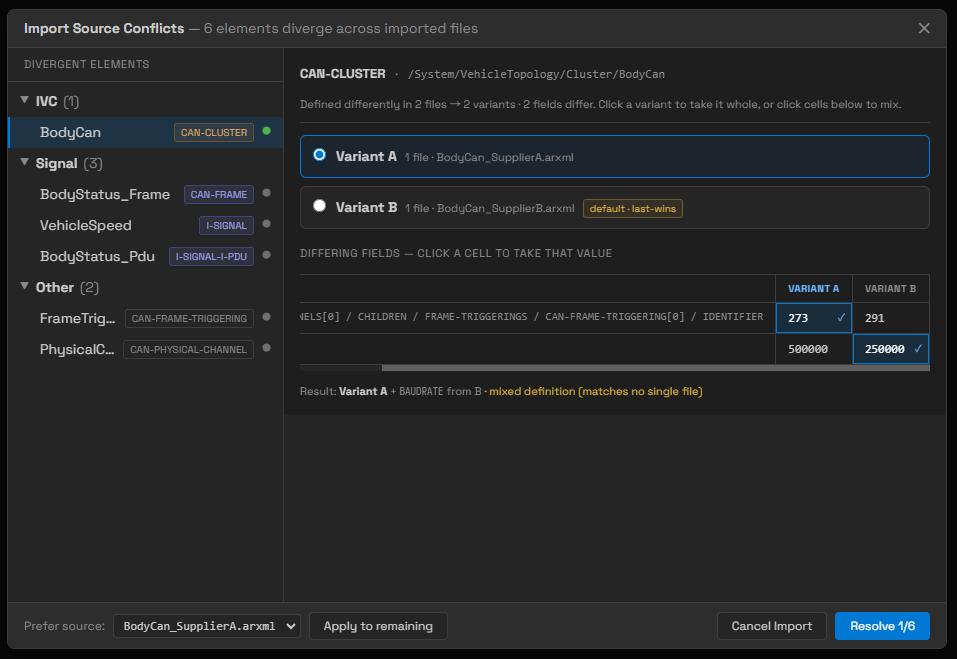
Fields mixed — the Result line also shows mixed definition
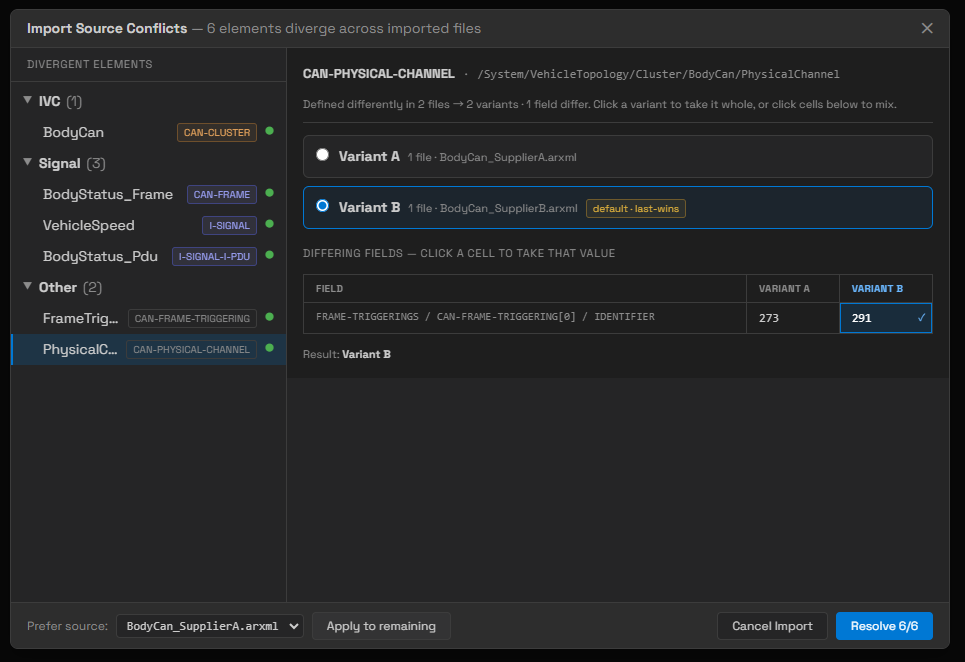
Everything decided — every dot in the list is lit and the button reads Resolve 6/6
13.2.5 Result 3 — Conflict Resolution
The conflict resolution dialog appears when an element already in the project and an incoming
element hold different values. The title has the form
Conflict Resolution — N conflicts (X decided · Y in-progress · Z pending).
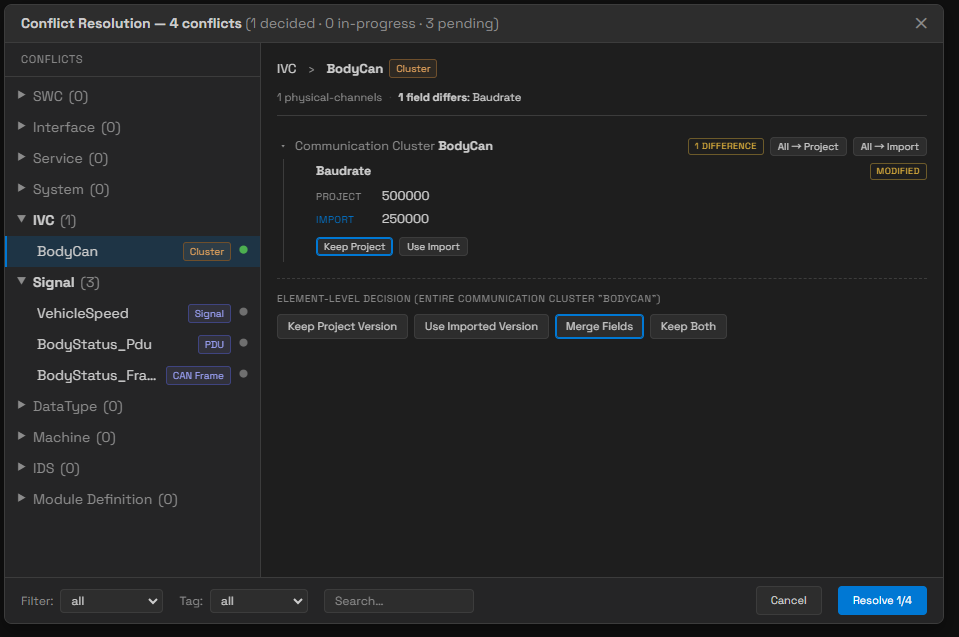
Conflict Resolution — the area tree, the field comparison, and the four per-element decision buttons
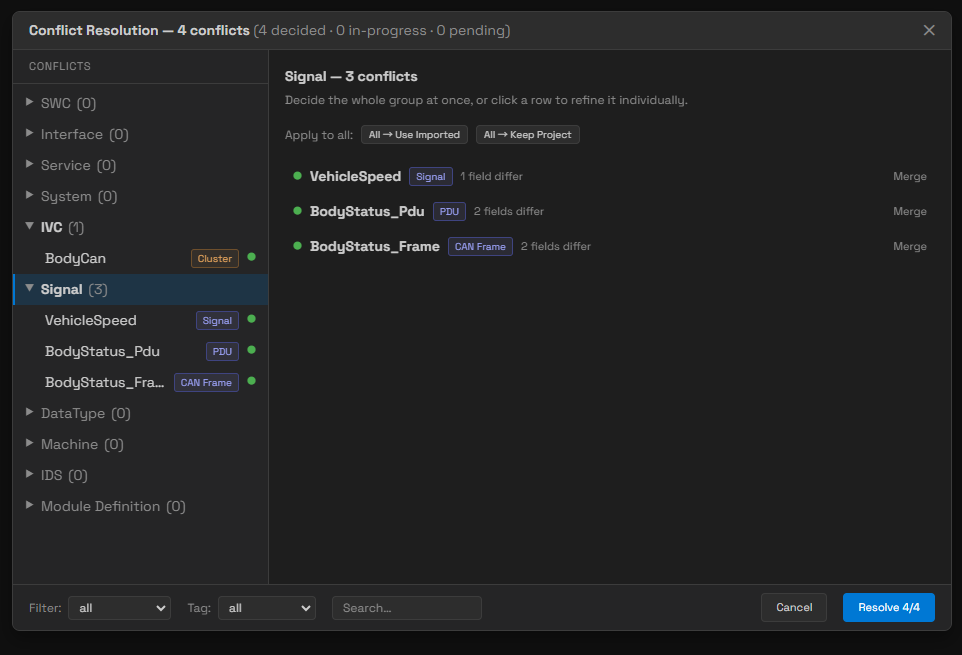
Area summary panel — the two bulk buttons and the current decision for each item
-
Select an item in the Conflicts tree on the left. Items are grouped into ten areas — SWC, Interface, Service, System, IVC, Signal, DataType, Machine, IDS, and Module Definition. Areas with no conflicts appear too, marked
(0)and collapsed. ECUC configuration value conflicts go into the Module Definition area with an ECU Config tag. Click an area header to open a summary panel that handles the whole area on one screen. The summary panel offers only the two bulk buttons All → Use Imported and All → Keep Project; per-field merging and Keep Both are chosen on the individual screen you reach by clicking an item. The text at the right of each row in the summary panel is not a button but that item's current decision —Keep Project/Use Imported/Merge/Keep Both, orpending → Importwhen nothing has been decided yet. -
Compare the existing value with the new value on the right. When the two summaries differ, they are shown as
... (Project) ↔ ... (Import), withN fields differ: ...below listing the names of the fields that actually differ. -
For each item, choose one of the following four.
Button Behavior Keep Project Version Leaves the value already in the project as it is Use Imported Version Replaces it with the imported value Merge Fields Lets you choose which side's value to use, field by field Keep Both Keeps both by giving the imported element a new name - Merge Fields appears only for items that carry field difference information. Conflicts compared per file, such as ECUC configuration values, do not offer this button.
- Keep Both is not always available either. For data mappings in the System area and NM Config conflicts in the IVC area, keeping both under a different name is meaningless, so the button is omitted.
- An element kept with Keep Both gets the new name
<original name>_imported, and if that name already exists,<original name>_imported_1,_imported_2, and so on. You do not type the name yourself. - For items that differ, Merge Fields is highlighted at first, but that state is not yet a decision. The tree and the counter at the bottom still count the item as pending.
- If you pick fields with Merge Fields and then switch to Keep Project Version or
Use Imported Version, the confirmation dialog
Discard field edits?appears. Its body readsTaking the whole <side name> discards your N field edits. - Fields you do not pick in Merge Fields keep the value already in the project.
-
Narrow the list with
Filter:(all / pending / in-progress / done),Tag:, andSearch…at the bottom. The three conditions are combined with AND.Search…filters by partial match on the element name, ignoring case. -
Click Resolve n/N to commit.
Be careful: items you have not decided are treated as "overwrite with the imported value", not as "keep the existing value". If undecided items remain, the
Unresolved Conflictsconfirmation dialog appears first, and its body statesN undecided conflicts will be overwritten with the imported values.Continue with Overwrite & Continue, or go back with Cancel. -
On completion, a toast shows
Import complete — conflicts resolved: N replaced, N kept, N renamed(counts of zero are omitted). -
Click Cancel, ✕, or press
Escand the confirmation dialogCancel import?appears. Its body readsDiscards this import and restores your project to its pre-import state.Stop with Cancel Import, or continue with Keep Resolving. If you stop, every file the import has already written is restored to its pre-import state andImport cancelled — the project was restored to its pre-import state.appears. If a file could not be restored,Import cancelled, but rollback could not restore: ...reports it. -
If an error occurs during resolution, everything is rolled back — nothing is applied partially. The result of the rollback is reported as well.
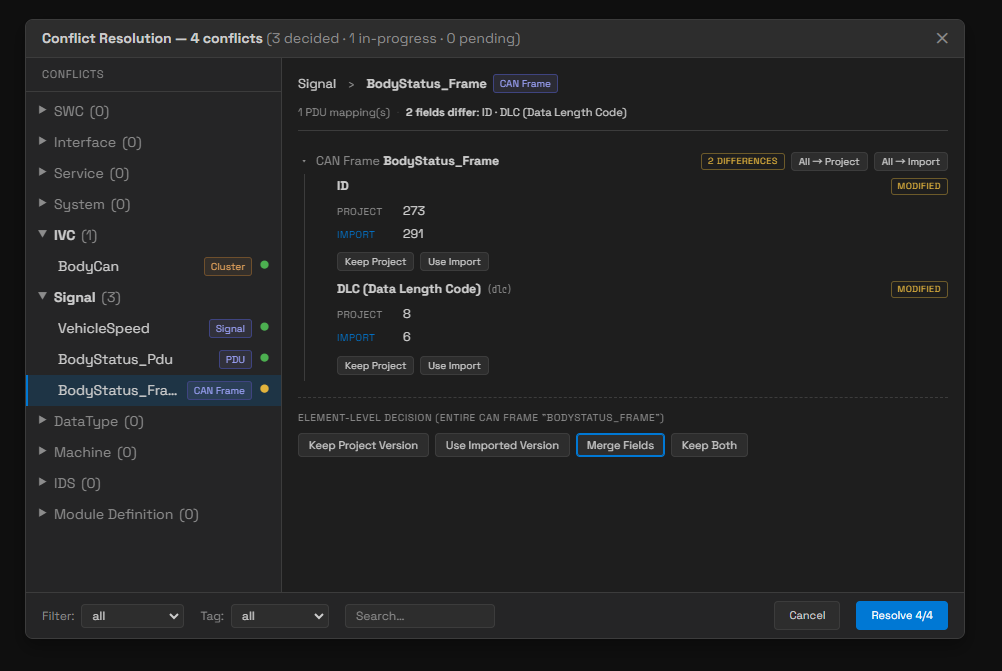
Merge Fields — mix the project value and the imported value field by field
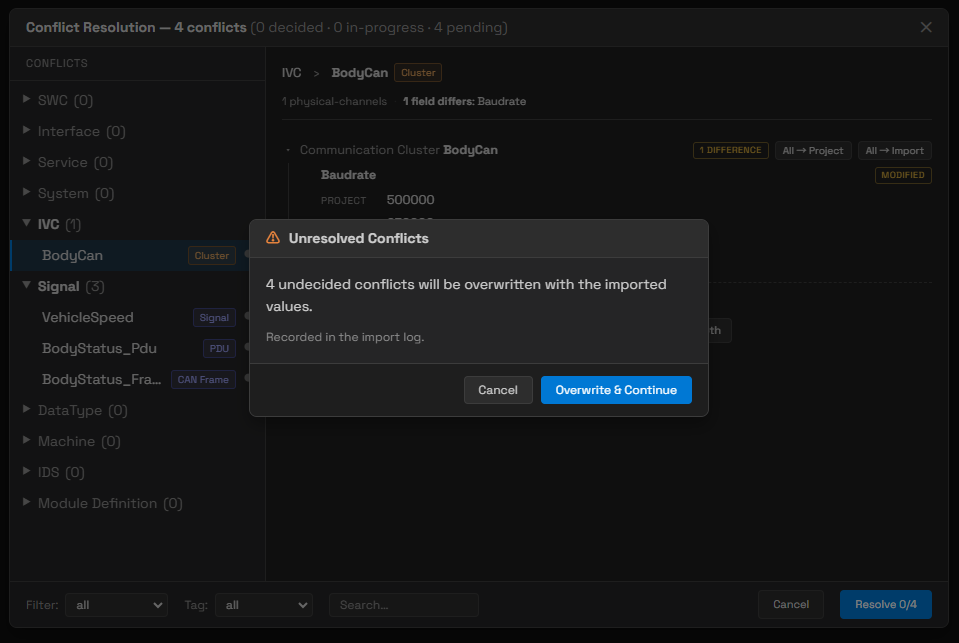
The confirmation dialog shown when you click Resolve with undecided items remaining
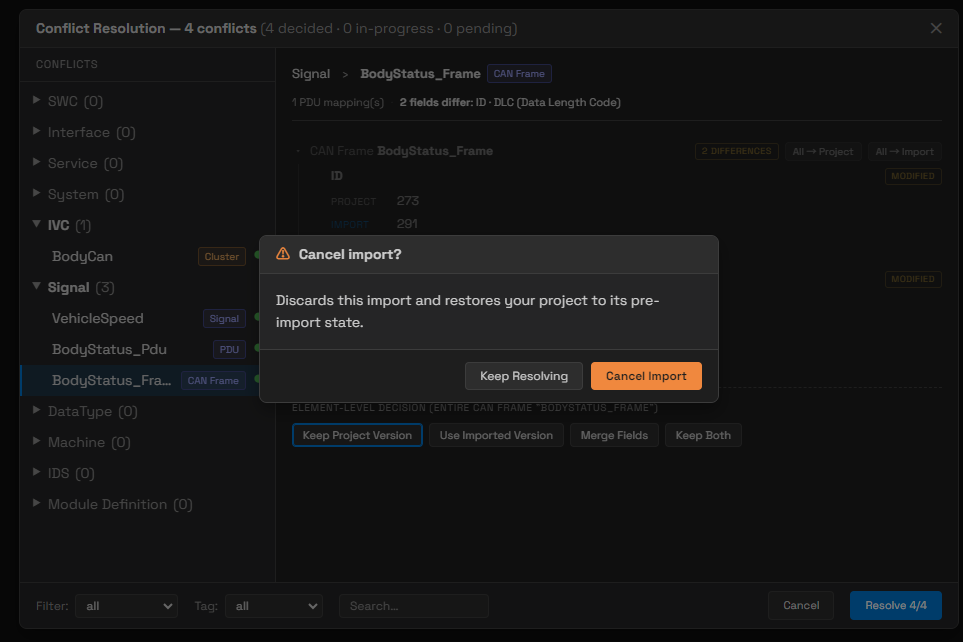
Cancelling during conflict resolution — the dialog confirming the restore to the pre-import state
13.2.6 What an Import Handles Together
A single ARXML import handles all of the following. Module definitions are read first and configuration values after them, so definitions and configuration values match correctly even when they are in the same file.
| Target | Where it lands |
|---|---|
| Network topology / signals / SWC / interfaces / data types / services / system / security events | The model of the corresponding editor |
| Machine configuration | Module ▸ Machine |
ECUC module definitions (ECUC-MODULE-DEF) | Module definitions |
ECUC configuration values (ECUC-MODULE-CONFIGURATION-VALUES) | Module configurations |
- Configuration values for a module with no definition are skipped, and
ECUC configuration "<module>" skipped: its Module Definition is not present in the project.is left as a warning. - Configuration values whose structure does not match the definition are rejected, and
ECUC configuration "<module>" rejected (definition mismatch): <reason>is left as a warning. - Parameters and references placed outside a container in an ECUC module definition are discarded.
ECUC-MODULE-DEFin the R25-11 XSD has no such place, so even if the model held them they could not be exported again. Discarded items appear in the warning list of the import result. - After the import, the documents that were created are checked against the schema, but the result is only logged; it neither blocks nor rolls back the import.
- The whole import is recorded as a single undo step. One
Ctrl+Zreturns the project to its pre-import state. The edit history records it asImport <name of the first file>.
Primitive handling rules for data types. The 11 built-in primitives are by rule never stored in a file, so an incoming definition with the same name is discarded and the built-in definition is used (10.7). Incoming forms are handled as follows.
| Incoming form | Result |
|---|---|
| A name that matches exactly one of the 11 built-in primitives | Skipped (the built-in definition is used) |
C++ notation (uint8_t, bool, float, double, int8 to int64) | Mapped back to the AUTOSAR notation first, then skipped as above |
A name differing only in case (Uint8, BOOLEAN) — implementation data type (C / C++) | Skipped, and references from other types to this name are changed to the standard name |
| A name differing only in case — application data type | Imported as an ALIAS to preserve the vendor notation (Factor 1, Offset 0) |
A VALUE category type that is not a reserved name | Converted to an ALIAS as a rule. However, if the primitive can be inferred from SW-BASE-TYPE / COMPU-METHOD / DATA-CONSTR and there is no additional information such as Factor, Offset, or Unit, no alias is created: the type is skipped and references are changed to that primitive |
| A type whose base type cannot be inferred by any method | Imported as an ALIAS with float32 as its BaseType (Factor 1, Offset 0), and one warning is added |
13.2.7 Re-importing Merges Rather Than Overwrites
If the same element is already in the project, the file is not replaced wholesale; the two are combined field by field. The rules are as follows.
- If only one side has a value, the side that has a value is used. This is handled silently and never raised as a conflict.
- Arrays that can be paired by name are combined into their union.
- A conflict is raised, and appears in the dialog of 13.2.5, only when both sides have a value and the two differ.
- Diagram coordinates (
position) and sizes (size) are not treated as content. VFB merging also ignoresport-positions,canvas-size,node-layout, andcurvature-offset. As a result, simply moving a node on the canvas never creates a conflict, and the existing layout is preserved (see 13.3.6).
13.2.8 DBC Encoding Caveat
Encoding handling for DBC files is always auto. The file is read as UTF-8 only when it has a
UTF-8 BOM, and as ISO-8859-1 otherwise. A UTF-8 DBC file without a BOM therefore comes in with
broken characters.
There is no way to choose the encoding; detection is always automatic. If characters come in broken, add a BOM to the file or save it again as ISO-8859-1.
A DBC import creates signals, PDUs, CAN frames, text tables, and network topology (ECUs and communication clusters).
13.3 Exporting a Project (ARXML)
13.3.1 Procedure
- In the Explorer, right-click the project node and select Export.
- No file selection dialog appears. The result is always created under
<project>/export/, and files of the same name are overwritten. - The progress dialog
Exporting to AUTOSARappears, and you can stop the export with Cancel. - On success,
Export complete: N elements exported to <project>_*.arxmlappears and the dialog closes after two seconds. The Cancel button changes to Close at that point, so you can close the dialog right away instead of waiting. TheN / M elementsfigure in the middle of the dialog is a progress counter, so its number differs from the element count in the completion message. The two count different things; this is not an error. Theexportfolder in the Explorer refreshes automatically. - On failure,
Export failed: <reason>appears and the dialog stays open. Close it with Close.
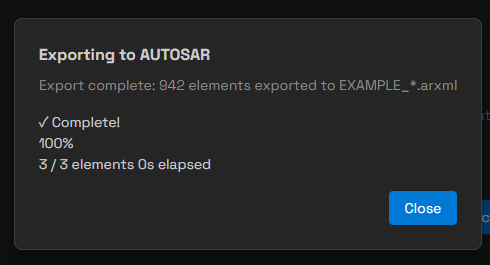
Project export complete — the element count and the name of the resulting file
13.3.2 Files That Are Created
If the project is named MyProject, the following files are created under export/.
| File | Contents | Created when |
|---|---|---|
MyProject_System.arxml | SYSTEM, ECU-INSTANCE, MACHINE-DESIGN, communication clusters, CouplingElement, NM, Transport Protocol, Global Time, service deployment | A System model exists |
MyProject_SWC.arxml | SWC / compositions / ModeDeclarationGroup / Executable / Machine | Any of SWC, compositions, or Machine has content |
MyProject_Interface.arxml | Port interfaces | Interfaces have content |
MyProject_IDS.arxml | ara::idsm SecurityEventDefinition | The IDS model has definitions |
MyProject_COM.arxml | Frames / PDUs / signals (IVC + Signal models) | Always |
MyProject_DataType.arxml | Data types, SW-BASE-TYPE, COMPU-METHOD, UNIT, DATA-CONSTR | Always |
MyProject_EcucModuleDef.arxml | All ECUC module definitions in one file | At least one module definition exists |
MyProject_EcucConfVal.arxml | All ECUC module configuration values in one file | At least one module configuration exists |
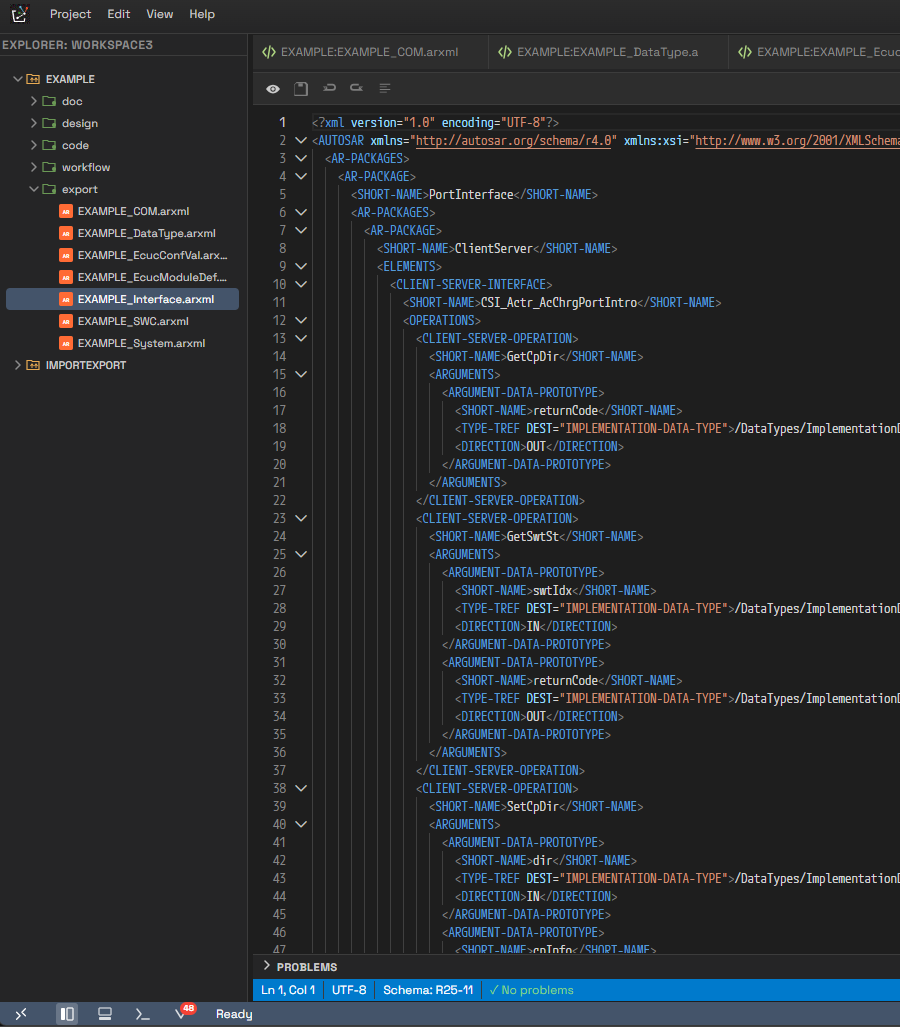
The files created in the export folder, and one of the resulting ARXML files opened
MyProject_COM.arxmlandMyProject_DataType.arxmlare always created, even when their content is empty. For the data type file, this is because the 11 built-in primitives are always included even when there is no DataType model at all (see 10.7).MyProject_DataType.arxmlholds up to eight AR-PACKAGEs under/DataTypes—BaseTypes,ImplementationDataTypes,CppImplementationDataTypes,ApplicationDataTypes,DataTypeMappingSets,Units,CompuMethods, andDataConstrs. A package with no corresponding content is not created, so the actual number depends on the project.MyProject.arxml(the file with no suffix) is not created. That path is used only to determine the output folder and the project name.
13.3.3 The Data an Export Reads
- If the IVC editor is open, even unsaved content is included. The export takes the latest IVC model directly from memory. Here too, only the editors of the target project respond.
- For every other model, and for the IVC editor when it is closed, the files in the
design/folder are read. It is therefore safer to save before exporting.
13.3.4 Output Specification
-
The AUTOSAR namespace is fixed at R25-11. The root tag of every file is as follows, and there is no UI for choosing the version at export time.
<AUTOSAR xmlns="http://autosar.org/schema/r4.0"xmlns:xsi="http://www.w3.org/2001/XMLSchema-instance"xsi:schemaLocation="http://autosar.org/schema/r4.0 AUTOSAR_00054.xsd">In the actual file this is written on one line.
-
A reference with no value assigned is not exported at all. This avoids writing an empty path that other tools would see as a dangling reference.
-
Immediately before the export, the documents in the
design/folder are checked against the schema. The result is only logged and does not block the export. -
If a signal referenced by a PDU or an NM-PDU is missing from the signal list, that mapping is left out of the export and
[Signal] Removed mapping to missing signal "..." ...is left as a warning. Exporting it as is would produce a reference to an undeclared<I-SIGNAL>. -
Diagram coordinates and screen layout are not carried in the ARXML. If you import exported ARXML into an empty project, the elements are restored but the nodes are laid out automatically (see 13.3.6).
-
The AR-PACKAGE layout rules are described in 13.3.5.
13.3.5 Package Layout of the Result
The AR-PACKAGE structure of the export result is fixed by rule. Below is the skeleton you will see most often; a package is not created when the project has no corresponding content.
System
 ├─ EcuInstance                  ECU
 ├─ MachineDesign                HPC
 ├─ CouplingElement              Ethernet switch
 ├─ CommunicationCluster/{Can|Ethernet|Lin|Flexray}
 ├─ Frame/{Can|Ethernet|Lin|Flexray}
 ├─ Pdu/{ISignalIPdu|NmPdu|NPdu|DcmIPdu|MultiplexedIPdu|GeneralPurposePdu}
 ├─ Signal/{ISignal|ISignalGroup|SystemSignal|SystemSignalGroup}
 ├─ NetworkManagement            NM-CONFIG (the name is always fixed to NmConfig)
 ├─ TpConfig/{CanTp|LinTp|Ieee1722Tp}
 ├─ GlobalTime
 ├─ EthernetWakeupSleepOnDatalineConfigSet
 ├─ DataTransformation
 ├─ Service                      AP service deployment / instances / CP-SOA
 ├─ DdsCpConfig
 ├─ SignalServiceTranslation
 └─ <SYSTEM element>             An element inside the System package, not a sub-package.
                                Its SHORT-NAME is the system name you chose
SWC, port interfaces, ECUC, data types, and security events use their own top-level packages.
SwComponentType/{Composition|Atomic/...}     SWC
PortInterface/{SenderReceiver|ClientServer|ModeSwitch|Service|Adaptive/...|
               InterfaceMapping}             Port interfaces
EcucModuleDef/<module>                       ECUC definitions (+ EcucDefinitionCollection)
EcucConfigVal/<ECU>/<module>                 ECUC configuration
DataTypes/{BaseTypes|ImplementationDataTypes|CppImplementationDataTypes|
           ApplicationDataTypes|DataTypeMappingSets}
Ids/SecurityEventDefinitions                 ara::idsm security event definitions
- The name of the
Systempackage is always the literal stringSystem, regardless of the name of the SYSTEM element. This keeps reference paths consistent across output split over several files. - The sub-package that holds an ECUC configuration is named after the ECU that configuration belongs to.
13.3.6 Information That Does Not Go Out to AUTOSAR
Some information that has no counterpart in the AUTOSAR standard is exported alongside the model in the ARXML ADMIN-DATA SDG (Special Data Group) and read back on import. This covers ownership relations — which ECU an ECUC configuration belongs to, which Machine a composition is deployed on — and PopcornSAR platform-specific configuration values. Thanks to this, these relations survive when you re-import ARXML that PAIO exported. Other tools do not read this information and pass it through unchanged.
Diagram coordinates and screen layout do not go out to ARXML. Node coordinates, connector positions, pan and zoom, connection line routes, and VFB layout stay inside the project. If you re-import ARXML exported from PAIO into an empty project, the elements are restored but the screen layout is not, and the nodes are laid out automatically on a grid.
If you re-import into the same project, on the other hand, the existing layout is preserved. A re-import is a merge, and coordinates and sizes are not treated as content (see 13.2.7).
13.4 ECU / Machine Extract
Extract cuts out one node (an ECU or an HPC) together with only what that node references, and writes it to a separate ARXML. Use it in a supply chain to hand a specific ECU owner only the part they need.
13.4.1 Procedure
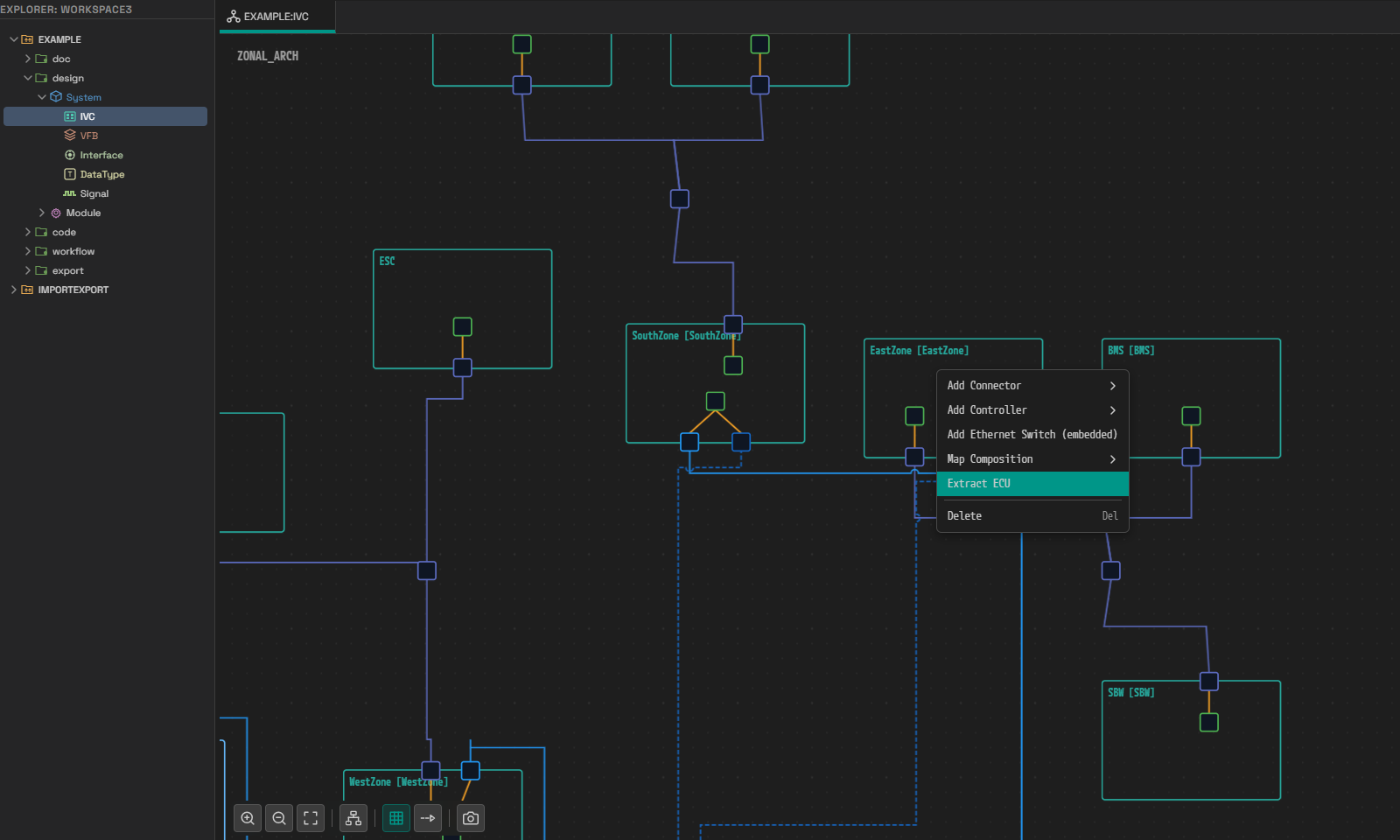
Right-click menu on an ECU node in the IVC canvas — Extract ECU
-
Open the IVC editor.
-
Right-click the target ECU or HPC node.
-
For a Classic ECU node, Extract ECU appears; for an Adaptive HPC node, Extract Machine. Select it and the progress dialog
Extracting <node name>appears. -
On success, the files that were actually created are listed as a checklist of area names. If the ECU is named
DoorEcu, for example, the subtitle readsDoorEcu → export/DoorEcu/and the following items are listed below it.Name shown Corresponding file System DoorEcu_System.arxmlCommunication (Signals / Frames / PDUs) DoorEcu_COM.arxmlSoftware Components DoorEcu_SWC.arxmlPort Interfaces DoorEcu_Interface.arxmlData Types DoorEcu_DataType.arxmlECUC Module Definitions DoorEcu_EcucModuleDef.arxmlECUC Configuration DoorEcu_EcucConfVal.arxmlFor files with a suffix not in the table above — for example
DoorEcu_IDS.arxml, which appears when security event definitions exist — the suffix string itself is shown as the item name. -
With no warnings, the dialog closes automatically after 2.5 seconds. If there are warnings, the dialog stays open and
ⓘ N notes — see consoleappears with it. The warning text itself is written only to the developer console.
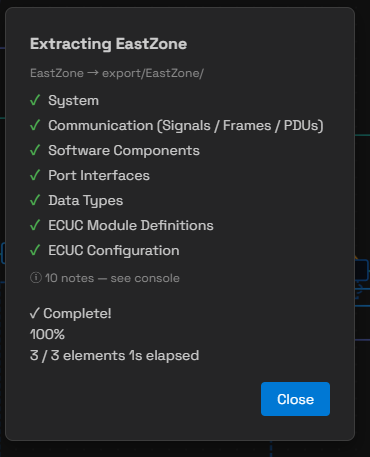
Extract result — the artifacts that were actually created, shown as a checklist of area names
13.4.2 Result
-
Output location:
<project>/export/<node name>/ -
File names use the node name as the prefix, not the project name (
DoorEcu_System.arxml). -
The
CATEGORYof the SYSTEM element states which kind of artifact it is.Artifact CATEGORY Full export SYSTEM_DESIGN_DESCRIPTIONExtract ECU (Classic) ECU_EXTRACTExtract Machine (Adaptive) MACHINE_DESIGN_EXTRACT -
Only the saved model (
design/) is read. Unsaved edits are not included even when the IVC editor is open, so save before extracting.
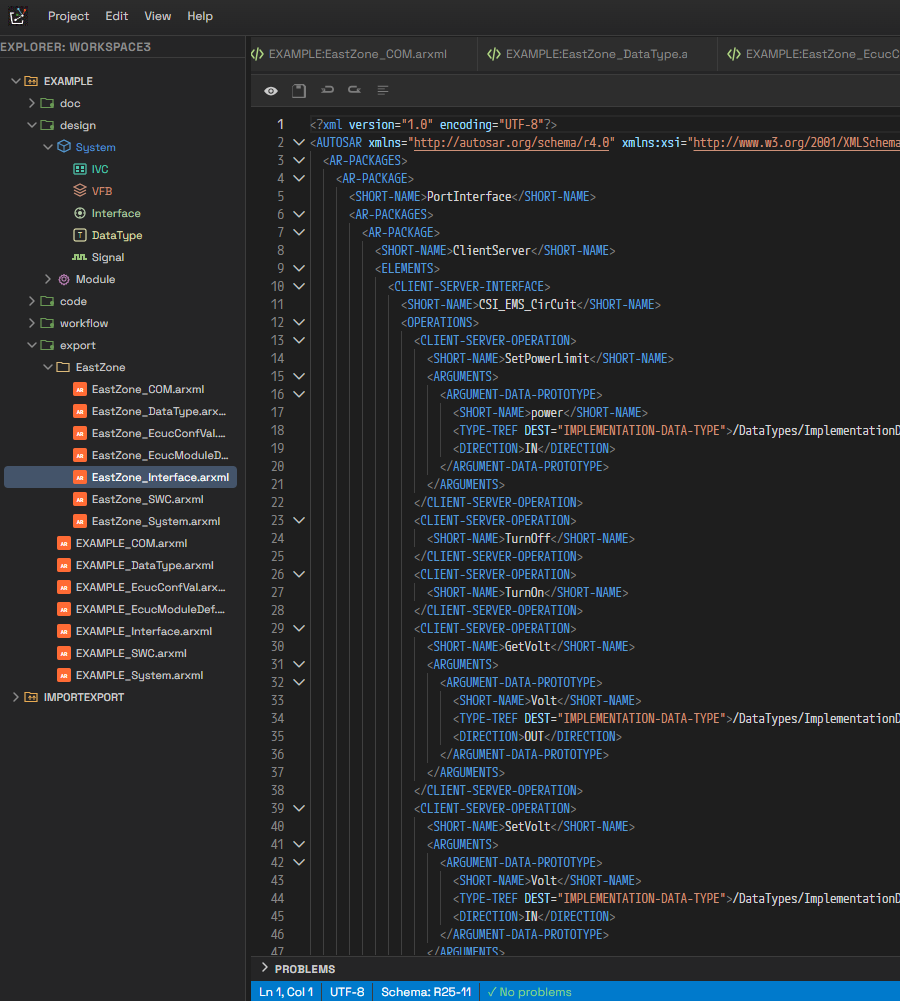
Extract artifacts are placed in a folder named after the node, prefixed with the node name
13.4.3 What Is Cut Out
- Classic (Extract ECU) keeps only the target ECU. Only the frames, PDUs, and signals the target transmits or receives remain; frames on the same bus that the target does not use are left out.
- Adaptive (Extract Machine) keeps the target HPC and also the MachineDesign nodes that the
remaining Machine configuration binds through
hpc-ref. This keeps references from breaking, and the nodes kept along the way are reported as warnings. - The SYSTEM element and the root software composition are kept as they are. Only the target ECU and its composition are registered in addition; the root is not changed to the target composition.
- ECUC configuration values are kept only for the target node's folder, while ECUC module
definitions are all exported. Definitions are a shared template, so this keeps the
DEFINITION-REFof a configuration value always resolvable. - Configuration values are selected by the folder name under
design/Module/Configuration/. That folder name comes from the imported AR-PACKAGE name, so for configurations brought in from outside, the node name and the folder name may differ. In that case no configuration value is picked up, and the list of folders that actually exist is shown as a warning. - Security event definitions (the IDS model) are not cut down. They are a dictionary shared by the
whole project, so they go out as they are in
<node name>_IDS.arxml. - The remaining elements are cleaned up so that they hold no dangling references. Any reference that was removed is left as a warning.
- The full export path does not go through this cut-down logic, so its result is unchanged.
13.5 Importing an ECUC Configuration on Its Own
Right-click the design ▸ Module ▸ Configuration node and only one item appears:
Import ECUC Configuration.
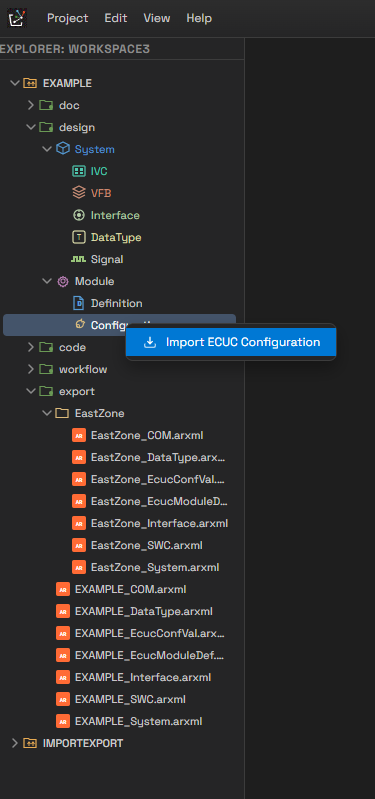
Context menu of the Configuration node — it has only one item
Note that the design ▸ Module ▸ Definition node has no import menu. Module definitions come in only
through the project-wide Import (13.2) or through step 3 of the procedure below.
13.5.1 Procedure
- The file selection dialog
Select ARXML File to Import ECUC Configurationopens. You can select only one file. - The progress dialog
Import ECUC Configurationappears. - If the file contains an
ECUC-MODULE-DEF, the module definition is imported first and the configuration values are then matched to that definition. The operation therefore works even when the definition and the configuration values are in one file. - If a module configuration already exists at the same path, the conflict dialog of 13.2.5 appears.
The body of the Cancel confirmation dialog differs in this flow, however:
Conflicting files keep your current values; already-imported files stay applied.In other words, files already written are not rolled back; only the conflicting files keep their existing values.- Because the conflict is per file, Merge Fields does not appear.
- Choosing Keep Both saves the configuration separately with a number appended, as in
<module>_1.
- The result is reported.
- If everything succeeds, the toast
ECUC Configuration Import Complete — imported N module configuration(s).appears. - If any module was skipped or rejected, the
ECUC Configuration Import — Partialdialog appears. Its body starts withImported N module configuration(s).and then listsSkipped — Module Definition not found:andRejected — definition mismatch:, each with the reasons. - If parsing itself fails, the
ECUC Configuration Import Faileddialog shows the error.
- If everything succeeds, the toast
- The whole import is recorded as a single undo step named
Import ECUC Configuration. A module definition written from the same file belongs to the same step, so oneCtrl+Zreverts both.
13.5.2 Reasons for Rejection
If a container, parameter, or reference of a configuration value cannot be found in the definition tree, the whole module is rejected. The reason strings have the following forms.
| Reason | Meaning |
|---|---|
Container definition not found in "<module>": <path> (instance "<name>") | The container definition could not be found |
Parameter definition not found in "<module>": <path> | The parameter definition could not be found |
Reference definition not found in "<module>": <path> | The reference definition could not be found |
If a parameter's type differs from the definition, the module is not rejected: the type is aligned to
the one in the definition and a warning is left:
Parameter "<path>" type <A> reconciled to <B> per definition.
The reference path rules of the ECUC model are described in 12.3.
13.6 DBC
- Import: select a
.dbcfile in the same Import dialog as in 13.2. You can also select it together with ARXML files in one go. - Export: the current version does not provide DBC export. To hand CAN information to another
tool, use the
<project name>_COM.arxmlfile produced by the project Export.
13.7 Adding the PARA Platform Base Configuration
This operation adds the base configuration of the PopcornSAR AUTOSAR Adaptive Platform (applications, service interfaces, error domains, data types, connectors, and the Machine module) to the project. You do not choose an external file; the set shipped with the product is used.
13.7.1 Procedure
- In the VFB editor, open the Machine Configuration dialog of a composition mapped to an HPC and click the PARA Platform button in the header. You can also start the operation with PARA: Import Platform from the command palette.
- The
Import PARA Platformconfirmation dialog appears. Its subtitle isPopcornSAR AUTOSAR Adaptive Platform, and the counts that will actually be added are shown as Applications / Service Interfaces / Error Domains / Data Types / Connectors / Machine items. Two lines of guidance appear with them.Network binding (SOME/IP, DDS, IPC) is not included. Configure it in Deployment after adding.Existing items with different content will ask for per-item confirmation.
- Click Import and the progress dialog
Adding PARA Base Configurationappears. If you close the confirmation dialog with Cancel, nothing happens. - From here on the behavior matches an ARXML import. Unsaved edits are saved first, the conflict
dialog of 13.2.5 appears if there are conflicts, and the whole operation is recorded as a single
undo step named
Add PARA Base Configuration.
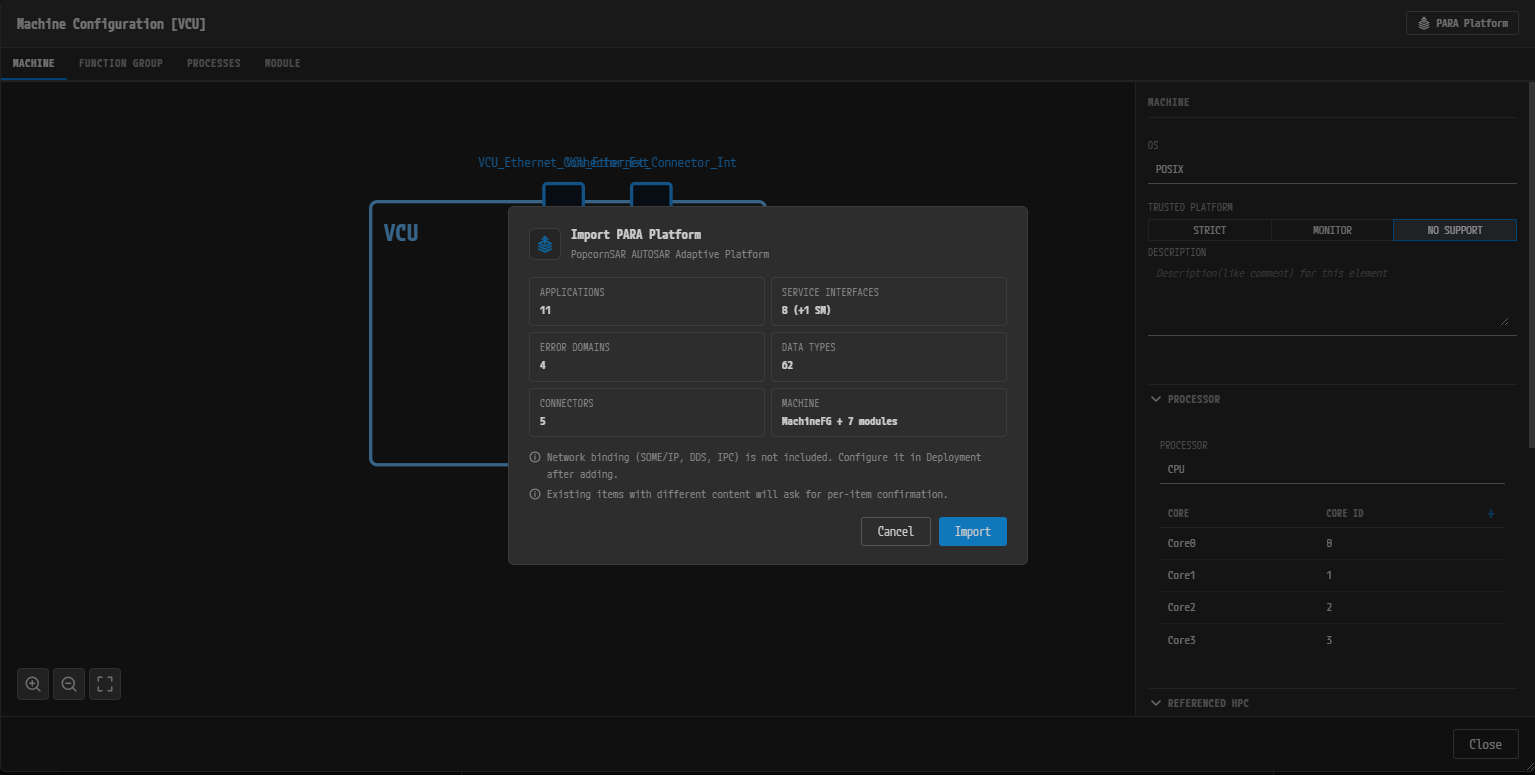
The Import PARA Platform confirmation dialog — the counts that will be added and the two lines of guidance
13.7.2 Limits and Constraints
- If you run the command from the command palette and there is no VFB editor to act on, nothing is
added and a guidance toast appears:
Open a VFB editor with an HPC-mapped composition, or use the PARA Platform button in the Machine Configuration dialog. - The operation is rejected while another import is running or waiting on a conflict dialog:
Base configuration rejected: <reason>. Finish or cancel it first. - The operation is rejected when the license has expired. It counts as a write operation, not an export.
13.8 Situations You Will Often Meet
Here are the situations that come up most often in import and export, and what to do about them.
| Situation | Cause and response |
|---|---|
| You click Export but only the upgrade notice appears | The license has expired (or is read-only). Import remains available |
Export failed: OFFLINE_EXPORT_DENIED appears | Export requires server validation. Check the network connection |
| Content you were editing disappeared after an import | An import saves every edit before it starts, so this does not happen in the normal flow. Ctrl+Z reverts the whole import |
The toast Unsaved changes were replaced in ... appears | An external write overwrote a file that had unsaved edits. Press Ctrl+Z as the toast suggests and those edits come back. The file stays marked dirty |
| You clicked Resolve in the conflict dialog and an existing value changed | Undecided items are overwritten with the imported value by default (13.2.5). To keep an existing value, select Keep Project Version explicitly |
| An ECUC configuration was not imported | The module's definition (.def) is not in the project. Import the definition first, or select the ARXML containing the definition at the same time |
An ECUC configuration is rejected with definition mismatch | The container or parameter path the configuration value points to is not in the definition. Use the reason strings in 13.5.2 to find which path it is |
| Korean or special characters in a DBC file come in broken | The file is UTF-8 without a BOM. Add a BOM to the file, or save it as ISO-8859-1 |
| The Extract result is missing your latest edits | Extract reads only saved files. Save first |
| The Extract dialog does not close on its own | It is held open because there are warnings. Review the checklist and close it with Close |
Import rejected: ... appears | The previous import has not finished. Handle or cancel the conflict dialog that is open |
A file you created in the export/ folder is not visible in the Explorer | The export folder in the Explorer shows only .arxml, .xml, and .dbc |