System Editor
What This Chapter Covers
This chapter describes the four tasks you perform on the single System editor: managing the name and version of the SYSTEM element, browsing the VFB composition hierarchy and editing its names, editing the SWC ↔ ECU mapping, and reading the progress and quality metrics. The chapter is written for users who have already defined an IVC topology and a VFB composition in the project. There are two prerequisites. The ECU and HPC list must be created in 06. IVC Editor, and the SWC hierarchy in 08. VFB Editor, before either appears on this page.
11.1 Opening the Page and Save Location
- In the project Explorer, double-click the
design ▸ Systemnode. The System tab opens. - After editing, press
Ctrl+Sor run Project ▸ Save. The changes are written to the System model.
The design ▸ System node has the IVC, VFB, Interface, DataType, and Signal nodes as children.
Expand the node and you can jump straight to a child editor without opening the System editor.
Because the node has children, the Enter key expands and collapses it. Editors open only on a double-click.
Edits are saved to a single System model, but some of the operations described in 11.4 and 11.8 below also modify the VFB model and the SWC definitions.
11.2 Screen Layout
The page holds four panels. The top row places System Information (left) and Statistics (right) side by side, and the bottom row splits SWC Hierarchy (left) and ECU Mapping (right).
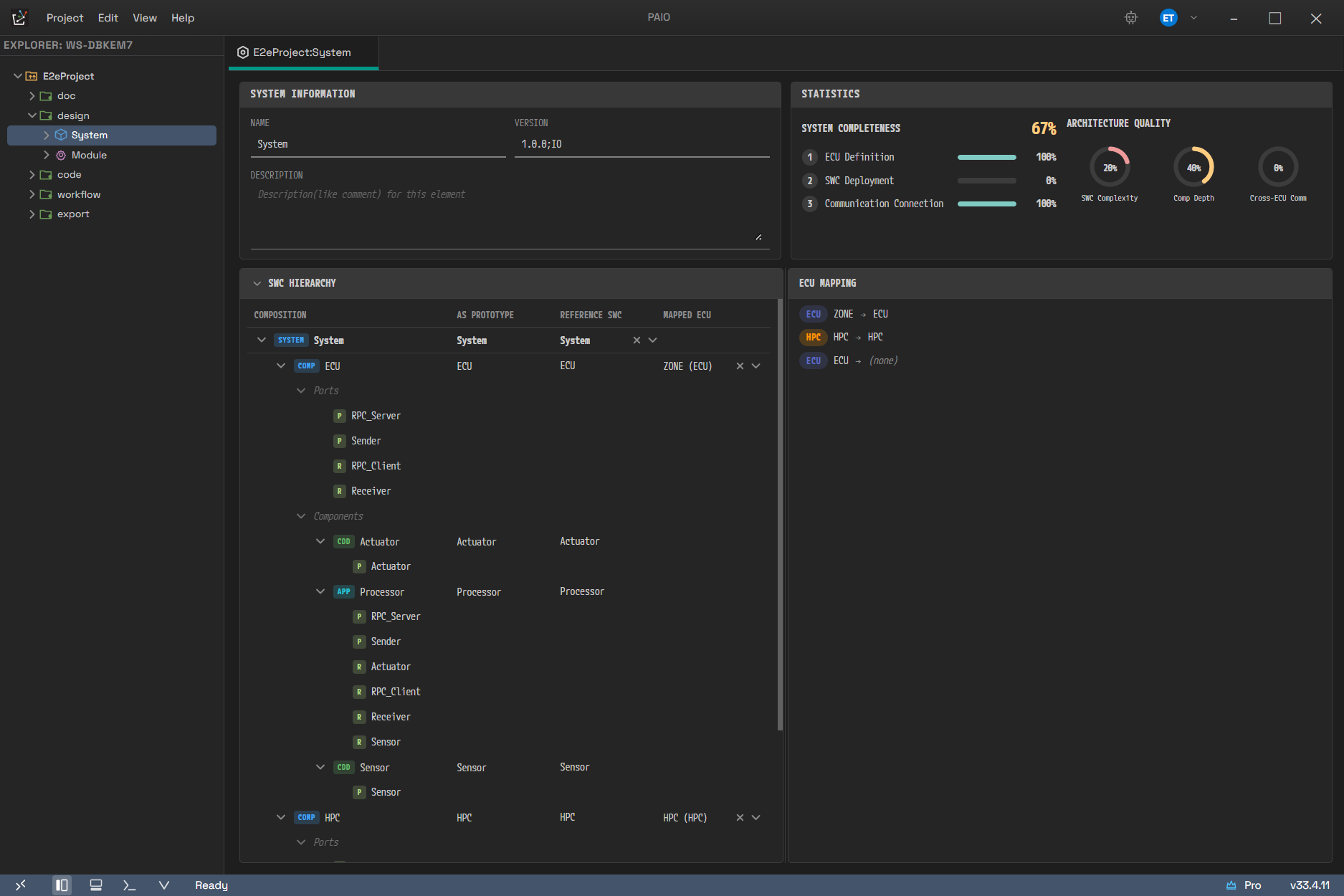
Because all four panels share one screen, you can see on the right which ECU hosts the element you selected in the hierarchy.
- Click either title in the bottom row, SWC Hierarchy or ECU Mapping, to collapse or expand that panel.
- Drag the sash between the two panels to change the width ratio. The ratio is limited to the range 20%–80%.
- Editing a value does not lose your scroll position.
11.3 System Information
Edit the basic information of the system element. There are three fields.
| Field | Form | Description |
|---|---|---|
| Name | single-line field | SHORT-NAME of the AUTOSAR SYSTEM element |
| Version | single-line field | Version string in major.minor.patch format |
| Description | multi-line field | Free text. Resizable |
- Only Name commits at a different moment. It is not written to the model while you type; it commits
in one step when the field loses focus (or when you press
Enter). PressEscto return to the last committed value. - If the value breaks the AUTOSAR SHORT-NAME rules at commit time (must start with a letter, may contain only letters, digits, and underscores, and must be 128 characters or fewer), the value is not written to the model, the field reverts to the model value, and a one-line error message appears. The name is an identifier, so the field shows the value the model actually accepted rather than the value you typed.
- Version and Description are written to the model on every keystroke. If the Version format is
wrong,
Must be major.minor.patch (e.g. 1.0.0)appears; if it is empty,Version is requiredappears. These messages are visual warnings only — the value still enters the model. - In all three fields, everything you type from the first keystroke until the field loses focus is grouped
into a single undo unit. One
Ctrl+Ztherefore reverts the whole editing session. - If the Name in the model is empty, the save is rejected and the error
System name cannot be emptyis logged. The commit rule above prevents you from emptying the name on this page, so this error appears only when you open a System model that was edited outside the tool. - Changing the Name is propagated to the other editors immediately.
For example, with Name set to BodySystem and Version set to 1.0.0, the SHORT-NAME of the SYSTEM
element becomes BodySystem on export.
11.4 SWC Hierarchy
This panel shows the VFB composition hierarchy in a four-column table, and lets you edit names and deployment directly in the table. The source of the table is the VFB model, not the System model. Change the structure in the VFB editor and this table follows.
If there is no SWC structure, No SWC structure found. Open VFB editor to define components. appears.
11.4.1 Columns
The table has these four columns.
| Column | Content |
|---|---|
| Composition | Hierarchy, kind badge, SWC type name (editable) |
| AS PROTOTYPE | Prototype SHORT-NAME (editable) |
| REFERENCE SWC | The referenced SWC type. A dropdown on the root row only; read-only on all other rows |
| MAPPED ECU | The ECU or HPC it is deployed to. A dropdown on depth-1 composition rows only |
The REFERENCE SWC column is editable on the root row only. On lower rows the referenced SWC name is shown as plain text, and clicking it does not open a dropdown. Changing the reference of a lower prototype is the VFB editor's job.
11.4.2 Row Types and Badges
The table contains four kinds of rows.
- Root row: carries the System badge. The Composition column holds the root composition name, and the AS PROTOTYPE column holds the SHORT-NAME of the RootSwCompositionPrototype. The MAPPED ECU column is always empty.
- Node row: carries a badge for the SWC type.
- Group row: expand a composition and the virtual rows Ports and Components appear beneath it, each collapsible and expandable on its own. An SWC that is not a composition shows its ports as direct child rows.
- Port row: shows a direction badge and the port name.
There are seven SWC type badges.
| Badge | SWC type |
|---|---|
Comp | composition |
App | application |
AA | adaptive-application |
CDD | complex-device |
Svc | bsw-service |
ECU | ecu-abstraction |
S/A | sensor-actuator |
There are three port direction badges: P (provided), R (required), and PR (both directions).
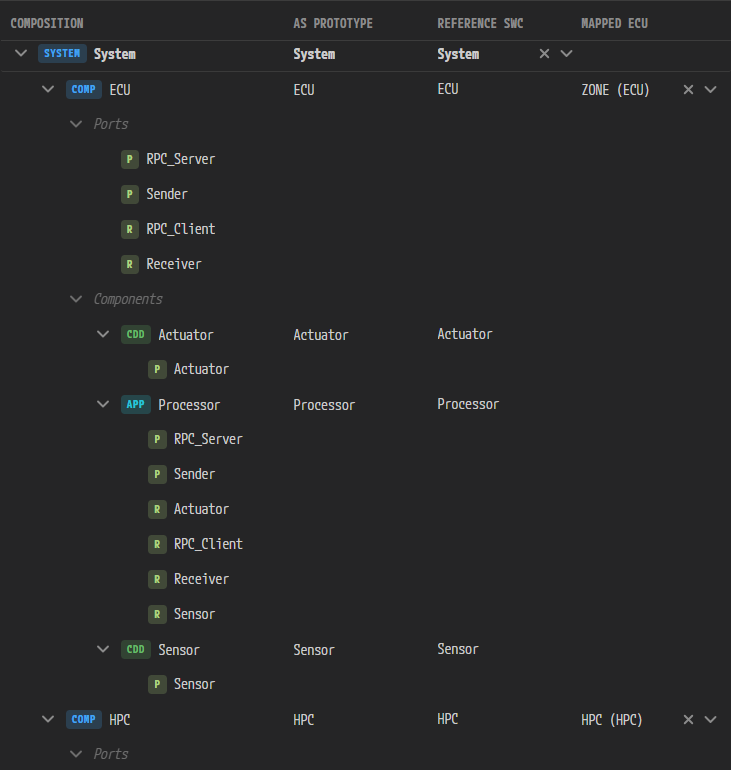
The root row carries the System badge and its MAPPED ECU cell is empty. Below it, only the depth-1 composition rows (Comp) show a deployment such as ZONE (ECU) or HPC (HPC). Expanding a composition creates the Ports and Components group rows, which hold the CDD and App node rows and the P and R port rows.
11.4.3 Editing a Name Cell
Edit the name in the Composition column and the AS PROTOTYPE column directly in the table.
- Click the text in the cell. A field appears in place and the existing value is fully selected.
- Change the value. If the value breaks a rule while you type, the field border turns red and an error tooltip appears below it.
- Press
Enteror move focus away. The value commits. PressEscto cancel the edit. - If the value does not pass validation at commit time, it is discarded and the cell returns to its original value.
There are two validation messages.
| Situation | Message |
|---|---|
| Character rule violation | Name must start with a letter or underscore, and contain only letters, digits, or underscores |
| Duplicate of another composition or SWC | Name "<value>" already exists |
- If you clear the value and commit, it is discarded without a message and the cell returns to its original value. You cannot make a name empty from this table.
- The duplicate check is case-insensitive. If
DoorSwcalready exists, for example,doorswcis rejected as well. - The character rule in this table allows a name to start with an underscore and sets no length limit. It is looser than the AUTOSAR SHORT-NAME rule used by the Name field in System Information, so a name that starts with an underscore can cause problems on export.
Changing a name in the Composition column renames the SWC type itself. This operation reorganizes the
related files immediately while a full-screen wait overlay reading Renaming SWC type... is shown
(see 11.8). Renaming in the AS PROTOTYPE column changes only the prototype instance name; this writes
the System model, the VFB model, and the SWC definition of the parent composition that contains the
prototype. Neither operation waits for a save.
11.4.4 Setting the Root Composition
The REFERENCE SWC dropdown on the root row offers the composition names in the VFB model as candidates.
- Click the dropdown. A search field (
Type to search...) appears and the candidate list opens. - Select a candidate. The root composition reference of the System model changes.
- The composition order in the VFB model is then rearranged around the new root. Compositions reachable from the new root move to the front, and compositions that cannot be reached move to the back. No composition is deleted.
- This rearrangement is grouped into the same undo unit as the root change. One
Ctrl+Zreverts both.
Click the x button to clear the selection.
11.4.5 Deploying to an ECU or HPC
The MAPPED ECU dropdown appears on depth-1 composition rows only. On deeper rows, on rows that are not compositions, and on port rows, this column is empty.
- Candidates are listed in the form
<name> (<kind>). For example:DoorEcu (ECU),ZoneCtrl (HPC). - Candidates are read from the IVC model. If the project has no ECU or HPC at all, the dropdown is replaced by the already recorded deployment name shown in dimmed text.
- Selecting a deployment is reflected immediately in the ECU Mapping list on the right and in the IVC and VFB editors.
11.5 ECU Mapping
A read-only list that shows the deployment relation between the ECUs and HPCs defined in the IVC and the
compositions, one per line. The row format is <ECU badge> <ECU name> → <composition name>.
Rows are listed in this order.
- Combinations with a deployment (rows where both the ECU and the composition are filled in)
- ECUs and HPCs with no composition deployed to them →
(none)on the right - Compositions not deployed to any ECU or HPC →
(unassigned)on the left
If there is no ECU or HPC at all, No ECU/HPC defined. Open IVC editor to define network topology.
appears.
11.6 Statistics
A read-only metrics panel. The values are recalculated whenever the model changes. It is divided into two sections.
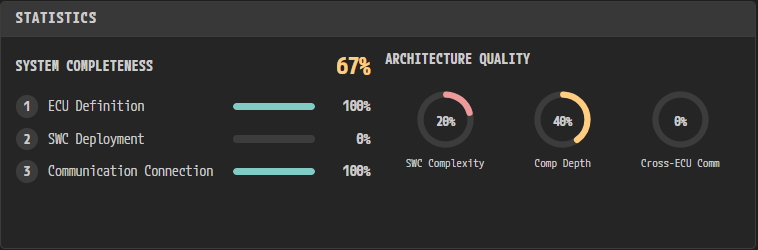
On the left is System Completeness, on the right Architecture Quality. In this example an ECU exists, so stage 1 is 100%; no leaf node is deployed to an ECU yet, so stage 2 is 0%, and the overall figure is the average of the three values, 67%. For the same reason Cross-ECU Comm is 0% as well.
11.6.1 System Completeness
Shows three progress bars for the three stages, plus an overall percentage that is the average of those three values. The formulas are below. A "leaf node" here means a node in the SWC tree that has no children.
| Stage | Metric | Formula |
|---|---|---|
| 1 | ECU Definition | 100% if at least one ECU or HPC exists, otherwise 0% |
| 2 | SWC Deployment | Deployed leaf nodes ÷ total leaf nodes |
| 3 | Communication Connection | Leaf nodes with one or more ports ÷ total leaf nodes |
The overall percentage is the arithmetic mean of the three values, rounded. If there is no SWC tree or no leaf node, stages 2 and 3 are 0%.
11.6.2 Architecture Quality
Three donut charts show the characteristics of the architecture. Each value is computed in the range 0 to 1 and then shown as a percentage. The formulas for the three metrics are below.
| Metric | Formula |
|---|---|
| SWC Complexity | (total ports of leaf nodes ÷ leaf nodes) ÷ 10, capped at 1 |
| Comp Depth | Maximum hierarchy depth ÷ 5, capped at 1 |
| Cross-ECU Comm | ECUs hosting leaf nodes that have ports ÷ ECUs hosting leaf nodes, capped at 1 |
Cross-ECU Comm is always 0% when one or fewer ECUs host leaf nodes, because the notion of inter-ECU communication does not apply.
The three charts and the progress bars use the same color thresholds. 80% and above uses the good color, 40% up to 80% uses the warning color, and below 40% uses the danger color.
These metrics are not check results that judge quality; they are a summary that shows scale and shape at a glance. A low value does not mean the model is wrong. Rule violation checks are handled by 14. Validation.
11.7 Saving, Undo, and Shortcuts
The shortcuts for saving and undo are below.
| Operation | Shortcut | Behavior |
|---|---|---|
| Save | Ctrl+S | Writes to the System model |
| Undo | Ctrl+Z | Reverts the most recent operation in the project journal |
| Redo | Ctrl+Y or Ctrl+Shift+Z | Reapplies the reverted operation |
- The shortcuts work only while the System tab is visible.
Ctrl+Sfirst commits the value of the field you were editing, then saves. Saving while focus is still in a field does not drop what you just typed.Ctrl+ZandCtrl+Yfirst move focus out of the field. Otherwise the browser's own undo would work character by character and diverge from the journal.- The menu items Project ▸ Save, Project ▸ Save All, and Edit ▸ Undo/Redo run the same operations.
- The dirty marker (dot) on the tab is derived from the journal. If an edit is not recorded in the journal, no dot appears either.
11.7.1 External Changes and Conflicts
The System editor detects when another tool or another window changes the System model.
- If unsaved edits remain, the page does not reload the contents from disk and shows this warning
instead:
System file changed on disk. Keeping your unsaved edits - save to overwrite the external change.This prevents the silent overwrite and loss of what you are editing. - If there are no edits, the page quietly reloads and refreshes the screen.
- If the IVC model, the VFB model, or an SWC definition changes, only the reference information (the ECU list and the SWC tree) is reloaded. This refresh is not recorded in the undo history.
11.8 Integration with Other Editors
- The ECU and HPC list is synchronized automatically from the IVC. The System editor has no function for adding or removing an ECU. ECUs are created in 06. IVC Editor.
- The SWC hierarchy comes from the VFB. Add and delete compositions and prototypes in 08. VFB Editor.
- The SWC ↔ ECU mapping can be edited in three places, and all three stay synchronized in real time. They are the MAPPED ECU column on this page, node right-click ▸ Map Composition in the IVC editor, and composition right-click ▸ Map to ECU/HPC in the VFB editor.
- Renaming an SWC type modifies three kinds of files at once. They are the System model, the VFB model,
and the renamed SWC definition (the old file is deleted and a new one is created). The composition SWC
definitions that held the reference are updated as well. All of this is one undo unit, so a single
Ctrl+Zreverts the changes in both editors together. TheRenaming SWC type...overlay is shown while the rename runs. - Renaming a prototype in the AS PROTOTYPE column also takes effect immediately. The System model, the VFB model, and the SWC definition of the parent composition that contains the prototype are written together as one undo unit. The SWC definition file name does not change.
- Selecting a value in REFERENCE SWC on the root row rearranges the composition order of the VFB model immediately. That write is part of the same undo unit.
- While these cross-file writes run, the VFB editor's file watcher pauses briefly. This prevents the drill-down state and the layout coordinates from being reset.
- Data mapping (port data element ↔ signal) is recorded in this model, but the editing screen is in the VFB editor. Select a boundary delegation port of a composition deployed to an ECU or HPC and the Data Mapping accordion appears in the properties panel. What you change there enters the data mapping of the System model.
- Double-click a System-related item in the validation panel and this page opens with the matching field or row highlighted. For details, see 14. Validation.
- For which ARXML the SYSTEM model is written to on export, see 13. Import and Export.
11.9 Common Situations
Below are the symptoms that occur most often on this page, with their causes.
| Symptom | Cause and handling |
|---|---|
The table is empty and only shows No SWC structure found... | The VFB has no composition. Create one in the VFB editor first |
| The MAPPED ECU dropdown is missing | The row is not a depth-1 composition row, or the IVC has no ECU or HPC at all |
| Clicking REFERENCE SWC does nothing | The row is not the root row. Change the reference of a lower row in the VFB editor |
| A name you changed reverts to its original value | The value was empty, broke the name rules, or was a duplicate. Check the error tooltip shown just before the commit |
| The save does not go through | The save is rejected when the Name in the model is empty. This happens when you open a file that was edited outside the tool |
| A wait screen appears after a rename | The SWC type rename is still reorganizing the SWC definition files. Wait until it finishes |
| Only the external change warning appears and the screen stays as it was | Unsaved edits exist, so the automatic refresh was skipped. Save and your content is kept |