Workspaces and Projects
What This Chapter Covers
This chapter explains how PAIO holds your work: a window opens one folder, and that folder is the project. It covers the window with no project open, creating and opening a project, the project's folders, opening the design editors from the EDITOR view, every operation in the Explorer, the save commands, and the edit History panel. It is written for users starting their first design in PAIO. You need a login and an active license (03. Installation, Login and License); while a license is expired, every create, delete, rename, and save described in this chapter is blocked.
4.1 Concepts
In PAIO the workspace and the project are the same thing. The folder a window opens is itself the project.
DoorEcu/                 ← the folder the window opens = the project
 ├── DoorEcu.io.prj      ← project metadata file (hidden in the Explorer)
 ├── code/  design/  doc/  export/  import/  workflow/
 └── ...
- One window, one project. The window title shows the project as
PAIO [<project>]. To work on another project, open it in another window (PROJECT ▸ New Window,Ctrl+Shift+N). - The folder name is the project name. A project consists of a project metadata file (
<project>.io.prj) and six fixed folders. - Opening a folder makes it a project. If the folder you open has no metadata file, PAIO adds the metadata file, the fixed folders, and the default models without asking. Nothing that already exists is overwritten. Folders below the opened folder are not searched for further projects.
- Undo/Redo, Save All, and the edit history (4.9) all belong to the one project of the window.
When PAIO starts without arguments, it reopens the last project you had open, as long as its folder still exists. If that project is already open in another window, the new launch opens a window with no project instead of bringing the existing window to the front.
4.2 Opening a Project
A window with no project open has the title PAIO and shows the Welcome tab.
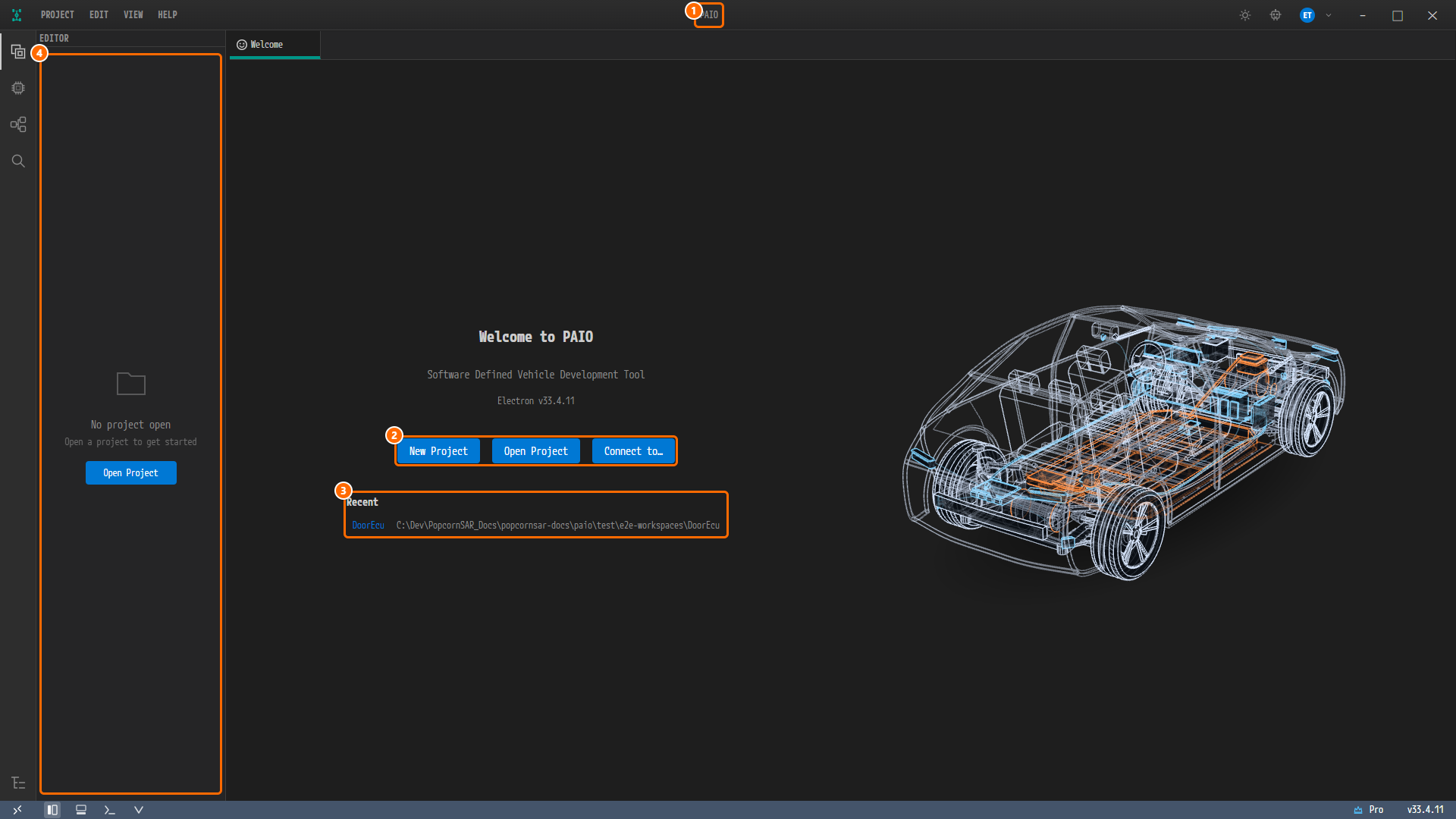
- The Welcome tab reads
Welcome to PAIOand offers New Project, Open Project, and Connect to…, followed by a Recent list. Each Recent entry shows the project name and its path. - The EDITOR view on the left reads
No project openandOpen a project to get started, with an Open Project button.
You open an existing project in one of these ways.
| Where | Entry |
|---|---|
| PROJECT menu | Open Project... (Ctrl+O) |
| PROJECT menu | Open Recent ▸ a recent project path. Clear Recently Opened at the bottom empties the list |
| Welcome tab | Open Project, or a project in the Recent list |
| EDITOR view of a window with no project | Open Project |
Open Project opens an OS folder selection dialog. In a window with no project, the folder you pick becomes that window's project. In a window that already has a project, the folder opens in a new window and the current window closes, as with Create (4.3.1). Remote connections (Connect to…) are covered in 17. Remote Development (SSH, vECU Container).
Check your work: the window title changes to PAIO [<project>] and the sidebar shows the EDITOR view with the header EDITOR: <project> (4.5).
- PAIO watches the project folder, so files added or deleted outside the app are reflected automatically (4.10).
- A window does not switch to another project in place. Each window keeps its own edit history for its one project (4.9).
4.3 Creating a Project
4.3.1 Procedure
- On the Welcome tab, click New Project, or run
PROJECT ▸ New Project.... There is no shortcut. - The New Project dialog opens. Type the project name into Name (placeholder
my-project). - Set Location, the folder the project is created in (placeholder
Folder the project is created in). Type the path, or click Browse… and pick a folder. Location is empty the first time; afterwards it is prefilled with the last location you used. - The line below the fields shows where the project goes:
The project will be created in <Location>\<Name>. - Click Create. Create stays disabled until Name and Location are set and the name is valid. Cancel closes the dialog without creating anything.
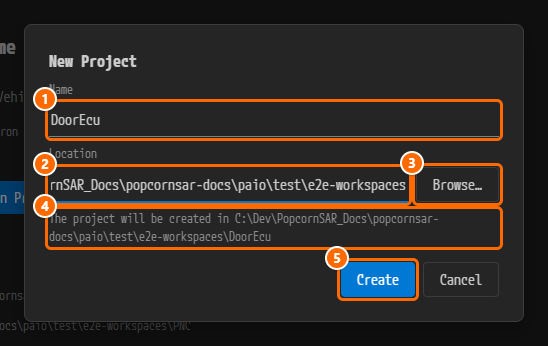
Enter in the dialog works as Create and Escape as Cancel.
Create makes the folder <Location>\<Name> and opens it as a project.
- In a window with no project, that same window becomes the project.
- In a window that already has a project, the new project opens in a new window and the current window closes. If the current window has unsaved changes, PAIO asks about them first (4.8).
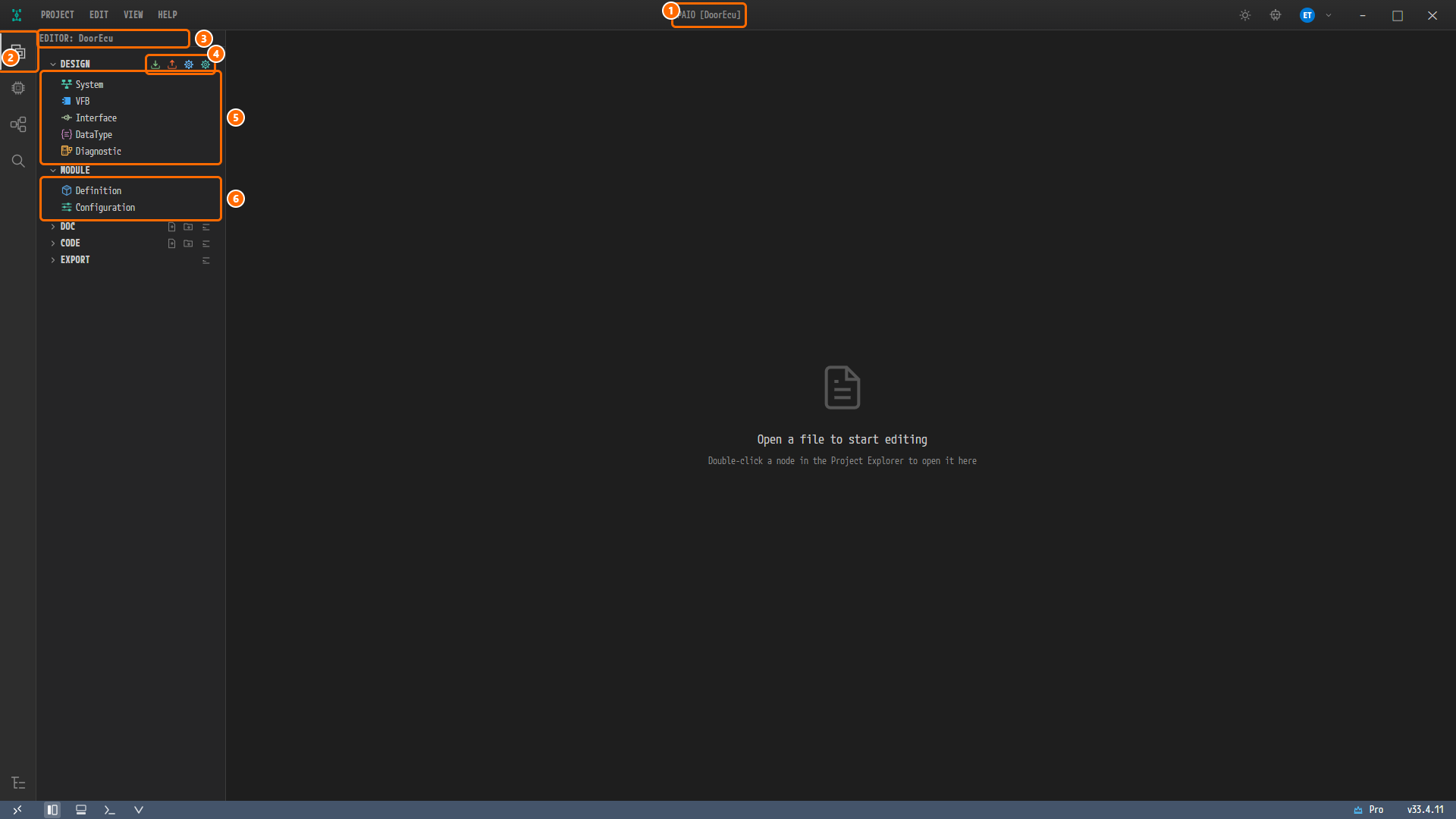
Check your work: the window title reads PAIO [<Name>] and the sidebar header reads EDITOR: <Name>, with DESIGN and MODULE expanded. No tab is open; the editor area shows Open a file to start editing. Click System under DESIGN to open the System editor of the new, empty system.
4.3.2 Name Rules
A project name must follow these rules.
| Rule | What happens on violation |
|---|---|
| Cannot be empty | Create stays disabled |
| Letters, digits, hyphens, and underscores only | While you type, the dialog shows Project name can only contain letters, numbers, hyphens, and underscores and Create stays disabled |
No Windows reserved names (CON, PRN, AUX, NUL, COM0 – COM9, LPT0 – LPT9, in any letter case) | The name is rejected |
<Location>\<Name> must not already be a project | Create leaves the dialog open with Project "<name>" already exists |
For example, DoorEcu, body-domain, and door_ecu_01 are accepted, while a name with spaces or a dot, such as Door Ecu or door.ecu, is rejected, and so is any name containing non-ASCII letters.
The duplicate check looks for a metadata file in <Location>\<Name>. A folder of that name without a metadata file is not a duplicate: PAIO completes it into a project (4.3.3). Whether names that differ only in letter case collide depends on the file system of Location.
4.3.3 What Gets Created
Creating a project produces the following in <Location>\<Name>.
| Item | Contents |
|---|---|
| Project metadata file | <Name>.io.prj |
| Six fixed folders | code, design, doc, export, import, workflow |
| Three default models | design/SYSTEM.io.model, design/VFB.io.model, design/IVC.io.model |
The default models start with this content.
- SYSTEM — both the system name and the root composition name are
System. Neither follows the project name, and you can change both freely later. - VFB — a single root composition named
System, empty inside. - IVC — the network model edited in the System editor. ECUs, HPCs, communication clusters, and coupling elements are all empty.
Existing folders and models are never overwritten. If the folder exists but the metadata file is missing, PAIO creates the metadata file and the missing parts, and recovers the folder as a project. If the metadata file exists too, creation stops with Project "<name>" already exists.
4.3.4 Quick Start Projects
The PROJECT menu no longer has Quick Start. Every project is created with New Project (4.3.1). The QuickStart workflow is not offered in this version either; see 15.5 in 15. AI Assistant.
4.4 Project Folder Structure
PAIO creates six fixed folders, and the Explorer lists all six.
| Folder | Purpose |
|---|---|
code/ | C/C++/Rust sources and build files. Also shown in the CODE section of the EDITOR view |
design/ | Model files (*.io.model) and the SWC/ and Module/ subfolders. The design editors are opened from the EDITOR view (4.5) |
doc/ | Documents. Also shown in the DOC section of the EDITOR view |
export/ | Export results. Also shown in the EXPORT section of the EDITOR view |
import/ | A place for import sources |
workflow/ | Files of the Workflow editor (WORKFLOW.io.workflow) |
- PAIO writes nothing into
import/. An import reads the source file you selected where it sits; it never copies the file into the project. - The Explorer applies no extension filter: every file and folder on disk appears, except the hidden entries described in 4.6.3.
code,design,doc,export, andworkflowcannot be renamed or deleted; their context menus have no such entries.importhas the full folder menu, including Rename and Delete (4.6.5), and a deletedimportfolder is recreated (4.10).
4.5 The design Folder and the EDITOR View
The sidebar starts on the EDITOR view (the Design icon at the top of the rail). This is where the design editors open.
| Section | Rows | What a click opens |
|---|---|---|
| DESIGN | System, VFB, Interface, DataType, Diagnostic | The editor of that name |
| MODULE | Definition, Configuration | The ECUC module definition and module configuration editors (12. ECUC) |
| DOC, CODE, EXPORT | The files of doc, code, and export | — |
A single click on a DESIGN or MODULE row opens its editor in a tab. The tab title has the form <project>:<row> — for example DoorEcu:System, DoorEcu:VFB, DoorEcu:Interface, DoorEcu:DataType, DoorEcu:Diagnostic, DoorEcu:Definition, or DoorEcu:Configuration. System opens the System editor, which edits the network topology (06. System Editor).
The DESIGN header has four icons: Import, Export, PRTE Code Generation, and PARA Code Generation. The import and export procedures are in 13. Import and Export.
Right-clicking a row shows these menus.
| Row | Menu |
|---|---|
| System, VFB, Interface, DataType, Diagnostic, Definition | Open |
| Configuration | Open, Import ECUC Configuration |
Signal has no row. The Signal editor opens from the Signal icon on the System editor canvas (06. System Editor, 07. Signal Editor).
In the Explorer, design is an ordinary folder that holds the model files (IVC.io.model, SYSTEM.io.model, VFB.io.model, and more as the design grows) and the SWC/ and Module/ subfolders. Double-clicking a *.io.model file there opens its content as read-only JSON, not a design editor. For example, design/IVC.io.model opens in the tab <project>:IVC.io.model with a Read-only label. Use the EDITOR view to edit the design.
4.6 Working in the Explorer
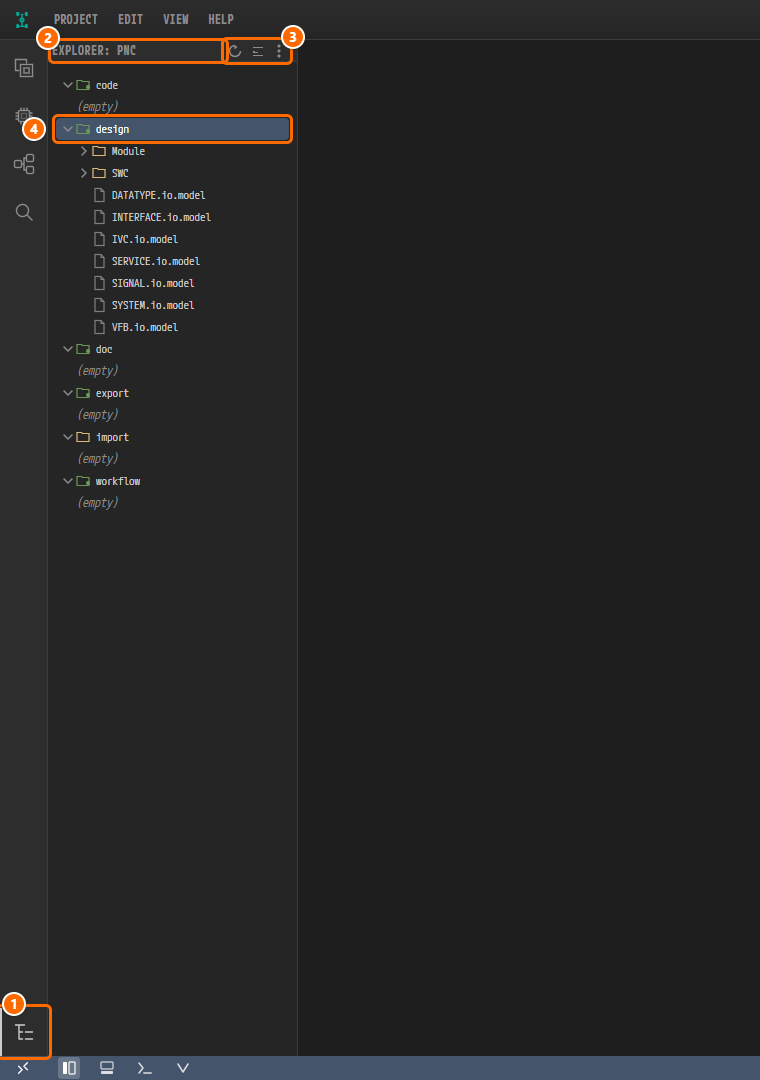
Click the Explorer icon at the bottom of the rail to show the Explorer. The header reads EXPLORER: <project>. The tree lists the contents of the project folder directly, with no project row on top: code, design, doc, export, import, and workflow. The metadata file <project>.io.prj is not listed.
4.6.1 Selecting
Use these actions to select and open items in the Explorer tree.
| Action | Result |
|---|---|
| Click | Single selection |
Ctrl + click | Toggles an individual item (multi-selection) |
Shift + click | Selects the range from the last item you picked |
| Double-click | Opens the file in the editor its file type decides (a *.io.model file opens as read-only JSON) |
| Right-click | Opens the context menu. If the item you right-clicked is already in the selection, the selection is kept; otherwise it becomes the single selected item |
Reopening a file that is already open does not create a new tab; it activates the existing one. At most 20 tabs can be open in total, and open requests beyond that are ignored.
4.6.2 Explorer Keyboard Shortcuts
These shortcuts work while the tree has focus.
| Key | Action |
|---|---|
Ctrl+C | Copies the selected files and folders |
Ctrl+X | Cuts the selected files and folders |
Ctrl+V | Pastes into the selected location |
Ctrl+A | Selects every expanded node |
Delete | Deletes the selected files and folders (with the same confirmation as right-click ▸ Delete) |
Delete, cut, and copy do not apply to the fixed folders code, design, doc, export, and workflow, so they cannot be deleted by accident.
4.6.3 Sidebar Header Buttons
The Explorer header has three buttons. They appear while the pointer is over the header.
| Button (tooltip) | Action |
|---|---|
| Refresh Explorer | Reads the disk again. Expansion state is preserved |
| Collapse All | Collapses everything if any node is expanded, and expands everything if none is (a toggle) |
| More Actions... | Opens a menu with Show Hidden Entries (Hide Hidden Entries while they are shown) |
The tooltip of the second button always reads Collapse All, but the action alternates between collapsing and expanding as the table describes.
Hidden entries are the ones PAIO keeps for itself: the project metadata file (*.io.prj) and the .paio, .devcontainer, and .git folders. Show Hidden Entries lists them too; the choice is remembered.
4.6.4 Drag and Drop
You can drag files and folders into another folder. The drop target is determined by the mouse position.
- Hovering over the middle of a folder row means dropping into that folder. Hovering about 0.6 seconds over a collapsed folder expands it automatically.
- Hovering over the top or bottom edge of a row means inserting beside that row. In this case the horizontal mouse position decides which parent folder receives the item: the further left you move, the higher the parent folder selected.
- Releasing performs the move.
These cases are ignored: dropping an item onto itself, dropping a folder into its own subtree, and dropping an item back into the folder it already belongs to.
If the target folder already contains the same name, PAIO renames the item instead of overwriting (the name-conflict rules in 4.6.8). A failed move raises no separate error dialog.
4.6.5 Context Menus (Right-Click)
The menu differs by what you right-click. While the clipboard holds something, Paste is added to the menu of the empty area, of doc and code, and of ordinary folders.
Empty area (the project folder itself)
| Entry | Action |
|---|---|
| New File | Creates a file at the top of the project folder |
| New Folder | Creates a folder at the top of the project folder |
| Reveal in File Explorer | Opens the project folder in the OS file manager |
| Open in Integrated Terminal | Opens the bottom terminal panel in the project folder |
| Copy Path | Copies the project folder's path |
There is no New Project entry, and there is no project row to right-click.
Fixed folders
| Folder | Menu |
|---|---|
design | Import, Export, Code Generation ▸ (PRTE, PARA), New File, New Folder |
doc, code, workflow, export | New File, New Folder |
import | New File, New Folder, Reveal in File Explorer, Open in Integrated Terminal, Cut, Copy, Copy Path, Copy Relative Path, Rename, Delete |
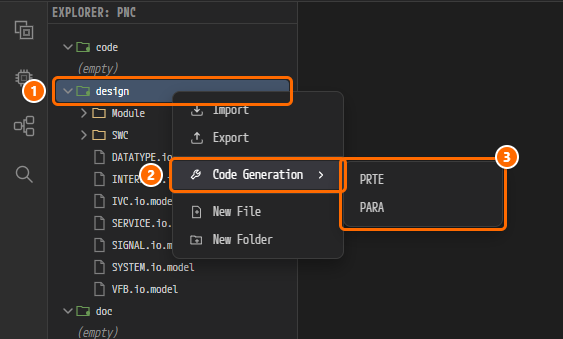
Import and Export on design are the same as the Import and Export icons on the DESIGN header of the EDITOR view (4.5). The detailed procedures are in 13. Import and Export.
Ordinary folders (for example a folder you created under doc)
New File, New Folder, Reveal in File Explorer, Open in Integrated Terminal, Cut, Copy, Copy Path, Copy Relative Path, Rename, Delete. For a multi-selection, Delete acts on every selected item.
Files
Open, Open to the Side, Reveal in File Explorer, Open in Integrated Terminal, Cut, Copy, Copy Path, Copy Relative Path, Rename, Delete. A file has no Paste; to paste next to a file, select it and press Ctrl+V, and the item is pasted into the folder that contains it.
4.6.6 Creating Files and Folders
Right-click a folder and choose New File.
- The New File dialog opens. In
docit asksEnter a file name with extension (e.g., document.md):. - Enter the name and click Create (or press
Enter). An empty file is created and opens immediately in an editor tab.
In doc and code (and their subfolders) only certain extensions can be created.
| Folder | Allowed extensions |
|---|---|
doc | .md, .markdown |
code | .c .h .cpp .hpp .cc .cxx .hh .hxx .rs |
A name that breaks the rule keeps the dialog open with a message; in doc, for example, a.txt shows Only Markdown files (.md) are allowed in doc folder. In the other folders, New File accepts any extension.
The name must not be empty, must not contain < > : " / \ | ? *, and must not match an existing file in the folder.
The
docfolder can hold any file, but Markdown is the only thing you can create there with New File. Copy images and other files in with the OS file manager (Reveal in File Explorer) and they appear in the tree.
New Folder opens the New Folder dialog, which asks Enter a name for the new folder:. The name must not be empty and must not contain the characters above. Outside doc and code, a new file or folder name also must not end with a dot or a space, and must not be a Windows reserved name.
4.6.7 Renaming and Deleting
Renaming a file — right-click and choose Rename.
- Only the name without its extension is edited; the extension is preserved. Renaming
main.ctodriver, for example, producesdriver.c. - If the file is open with unsaved changes and its editor cannot follow the new path on its own, PAIO asks about the unsaved changes first. Canceling cancels the rename itself. An editor that can follow the new path keeps the unsaved content without asking.
- Once the name changes, the open tab and the edit history follow the new path.
Renaming a folder — use Rename in the same menu. If unsaved tabs exist under the folder, PAIO handles them without asking. An editor that can follow the new path carries its unsaved content to the new path, and an editor that cannot is saved automatically before the rename. The old path disappears the moment the folder name changes, leaving nowhere to save, so skipping the question is intended behavior.
Deleting — right-click and choose Delete, or press the Delete key. A confirmation dialog appears first, one for a single item and one for a multi-selection. Deletion cannot be undone.
Tabs showing a deleted file, or a file below a deleted folder, close with it. A failed deletion raises no separate error dialog.
4.6.8 Cut, Copy, and Paste
- Cut and Copy put every selected file and folder on the clipboard.
- Paste pastes into the folder you selected, or into the parent folder if you selected a file.
- Pasting a folder onto itself redirects the target to the parent folder, and you cannot paste a folder into its own subtree.
- The clipboard is cleared once at least one cut-and-paste succeeds. Copy-and-paste keeps the clipboard, so you can paste repeatedly in several places.
Name-conflict rules — when a copy, move, or drag would paste onto an existing name, PAIO renames the item instead of overwriting. Pasting main.c into the same folder, for example, produces main_copy.c, and if that name is taken too, the numbers continue with main_copy2.c, main_copy3.c, and so on. Folders follow the same rule.
4.7 Renaming and Deleting a Project
The Explorer has no project row, so PAIO offers no command to rename or delete the project open in a window. The project is its folder, and you rename or delete it as a folder.
4.7.1 Rename Project
- Close the PAIO window that has the project open.
- Rename the project folder with the OS file manager. The new name must follow the rules in 4.3.2.
- Open the renamed folder in PAIO (
PROJECT ▸ Open Project...).
The folder name is the project name. When the folder opens, PAIO renames the metadata file and the name recorded in it to match the folder.
4.7.2 Delete Project
- Close the PAIO window that has the project open.
- Delete the project folder with the OS file manager.
An entry for a deleted project can stay in the Recent list. Remove it with PROJECT ▸ Open Recent ▸ Clear Recently Opened.
4.8 Saving
The PROJECT menu has two save commands.
| Command | Location | Action |
|---|---|---|
| Save | PROJECT ▸ Save (Ctrl+S) | Saves the active editor |
| Save All | PROJECT ▸ Save All | Saves every changed file of the window's project |
- There is no Save As....
Ctrl+Shift+Sin the System editor and the DataType editor saves just likeCtrl+S. - Changes in the SYSTEM panel are written to disk as you make them. They leave no unsaved mark on any tab and need no save.
- Closing the window while a tab has unsaved changes shows the Unsaved Changes dialog:
Do you want to save the changes to <project>:<file>?with Save, Don't Save, and Cancel. Cancel keeps the window open. Ctrl+Ssaves through the same path as the Save menu entry even when pressed outside an editor — for instance right after clicking a menu, when focus has left the editor. ACtrl+Salready handled elsewhere is not run twice.
Saving can also be unavailable. While the license is expired or read-only, the save commands are replaced by an upgrade dialog (see 03. Installation, Login and License, 3.4).
4.9 Edit History (History)
The History tab in the bottom utility panel shows the project's edit timeline. This timeline is called the edit history, and each window has one for its project. Toggle the panel with the panel button at the left of the status bar (tooltip Toggle Panel (History / Problems)). The panel has two tabs, History and Problems. The Ctrl+J key toggles the terminal panel, not this panel.
- The newest entry is at the top. Relative to the Current state marker, entries above are Redo targets (dimmed) and entries below are Undo targets. The bottom entry is Initial state.
- Each row shows a description of the action, a tag for the target, and the time. For example, typing into the SYSTEM panel's DESCRIPTION adds one
Edit System descriptionrow per typed character. - A single click selects the row; a double-click jumps to that point in one step (time travel). Double-clicking Initial state jumps to the state with every edit in this project undone.
- While a jump is in progress the list is locked and accepts no further operations.
- Before any edit, the list reads
No edits yet. - A project keeps up to 25 entries, of which bulk operations (AI generation, import) keep at most 10. Whenever either limit is exceeded, the oldest entries are cleaned up. Bulk operations never push out your own direct edits.
Model validation results do not appear in the Problems tab; they appear in the separate VALIDATION panel (14. Validation, 05. UI Layout and Navigation).
4.10 Watching External Changes and Automatic Recovery
The app watches the project folder the window has open.
- The watch depth is 10 levels. Files and folders whose names start with a dot (
.), andnode_modules, are not watched. - After a write finishes, PAIO waits about 0.2 seconds for things to settle before handling the event, so the tree does not flicker while a large file is being copied.
- A fixed folder deleted externally is recreated automatically. All six fixed folders are covered,
importincluded. Recovery is skipped, however, once the folder is no longer recognized as a project because its metadata file is gone.
When a file with an open editor changes externally, PAIO does not reload the disk content if that editor has unsaved changes. A reload would silently discard your unsaved edits. In this case the model on screen is kept, a notice that the reload was skipped appears once, and saving overwrites the disk with what is on screen. If there are no unsaved changes, the external change is applied as is.
4.11 Editing Files Directly
A project's models are stored as text JSON, so you can put them under configuration management (diff/merge) as they are. Editing them outside PAIO is not recommended, but if you must, keep the following in mind. For how the app handles external changes, see 4.10.
- Hand-editing name references that span several files can break consistency. Renaming is safer in the editor, which updates the references with it.
- The editor cannot reject a value that breaks the name rules — an empty string, whitespace, a name starting with a digit — if you enter it by hand. Names are identifiers, so references can break.
- To check for problems after editing, use the validation panel (14. Validation).