SYSTEM Panel
What This Chapter Covers
This chapter explains the SYSTEM panel, where you read and edit the information of the SYSTEM element. The panel has no tab of its own. It opens in the property panel on the right of two canvases.
- In the System editor (tab
<project>:System) it shows NAME, VERSION, DESCRIPTION and the read-only ECU MAPPING list of the SWC ↔ ECU mapping. - In the VFB editor (tab
<project>:VFB) it shows NAME, VERSION, DESCRIPTION, ROOT COMPOSITION and the read-only COMPOSITIONS tree of the composition hierarchy.
ECU and HPC nodes are created in 06. System Editor, and compositions in 08. VFB Editor.
11.1 Opening the Panel and Save Location
- In the EDITOR view, click System (or VFB) under DESIGN.
- Click the System button on the right edge of the canvas. It is the third button, below the panel toggle and the lock.
- The property panel opens with the title SYSTEM.

① The panel toggle, ② the lock, ③ the System button.
There is no save step. Each change is written to design/SYSTEM.io.model at once.
11.2 Screen Layout
The fields sit at the top of the panel. The list (System editor) or the tree (VFB editor) sits below them.
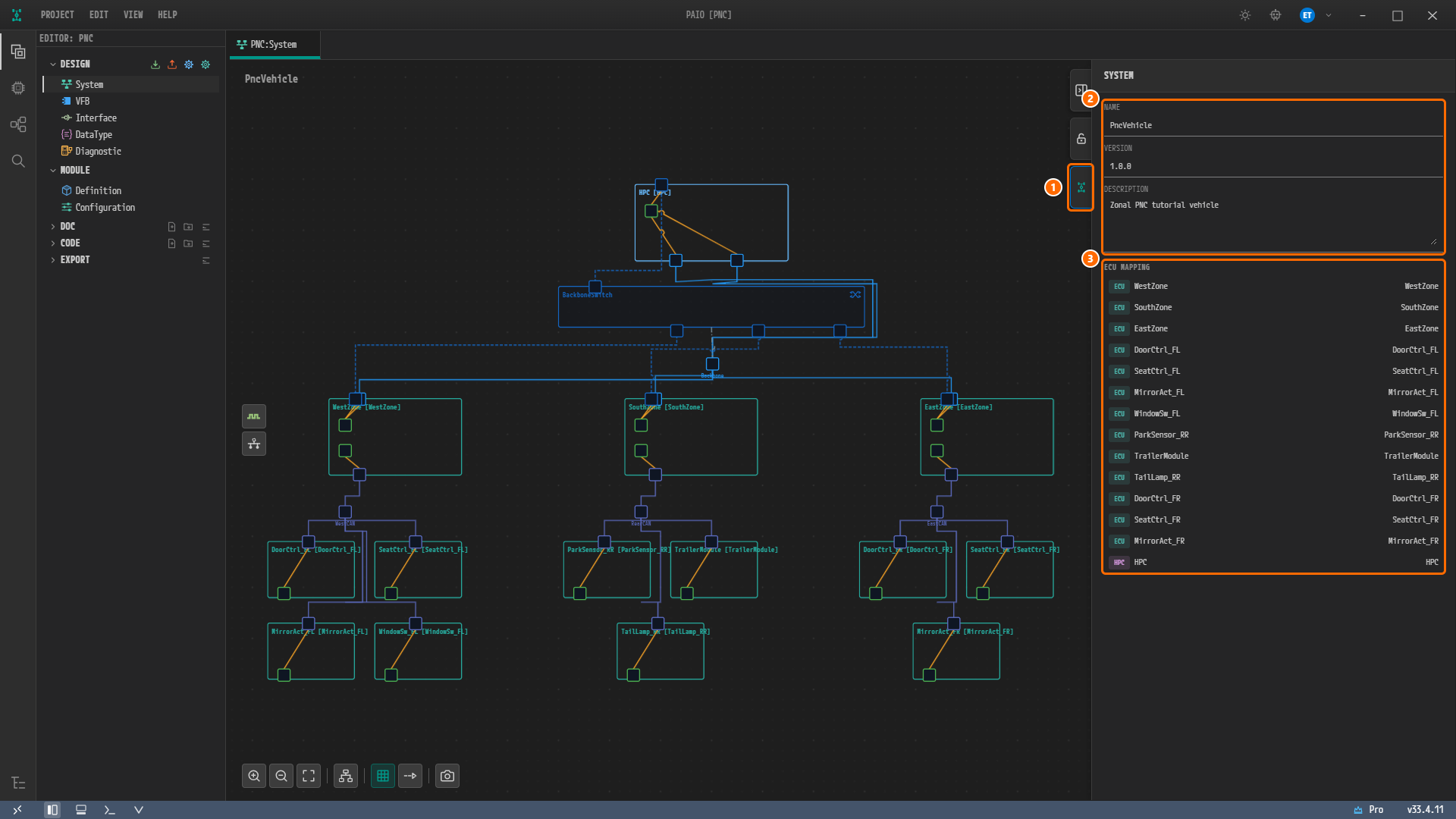
① The System button, ② NAME, VERSION and DESCRIPTION, ③ ECU MAPPING, one row per ECU or HPC node.
- Select a node and the panel switches to that node. Click System again to return.
- When the panel is not locked, clicking empty canvas collapses it.
11.3 System Information
- Enter NAME, the SHORT-NAME of the SYSTEM element. It commits on
Enteror when the field loses focus. - Enter VERSION in
major.minor.patchform, such as1.0.0. - Enter DESCRIPTION as free text.
- An empty or rule-breaking NAME is not written. The field returns to the stored name and shows an error.
- A wrong VERSION shows a warning, but the value is still written.
11.4 Compositions Tree (VFB Editor)
The COMPOSITIONS tree in the VFB editor's panel shows the composition hierarchy. It is read-only. Add, delete and rename compositions in 08. VFB Editor.
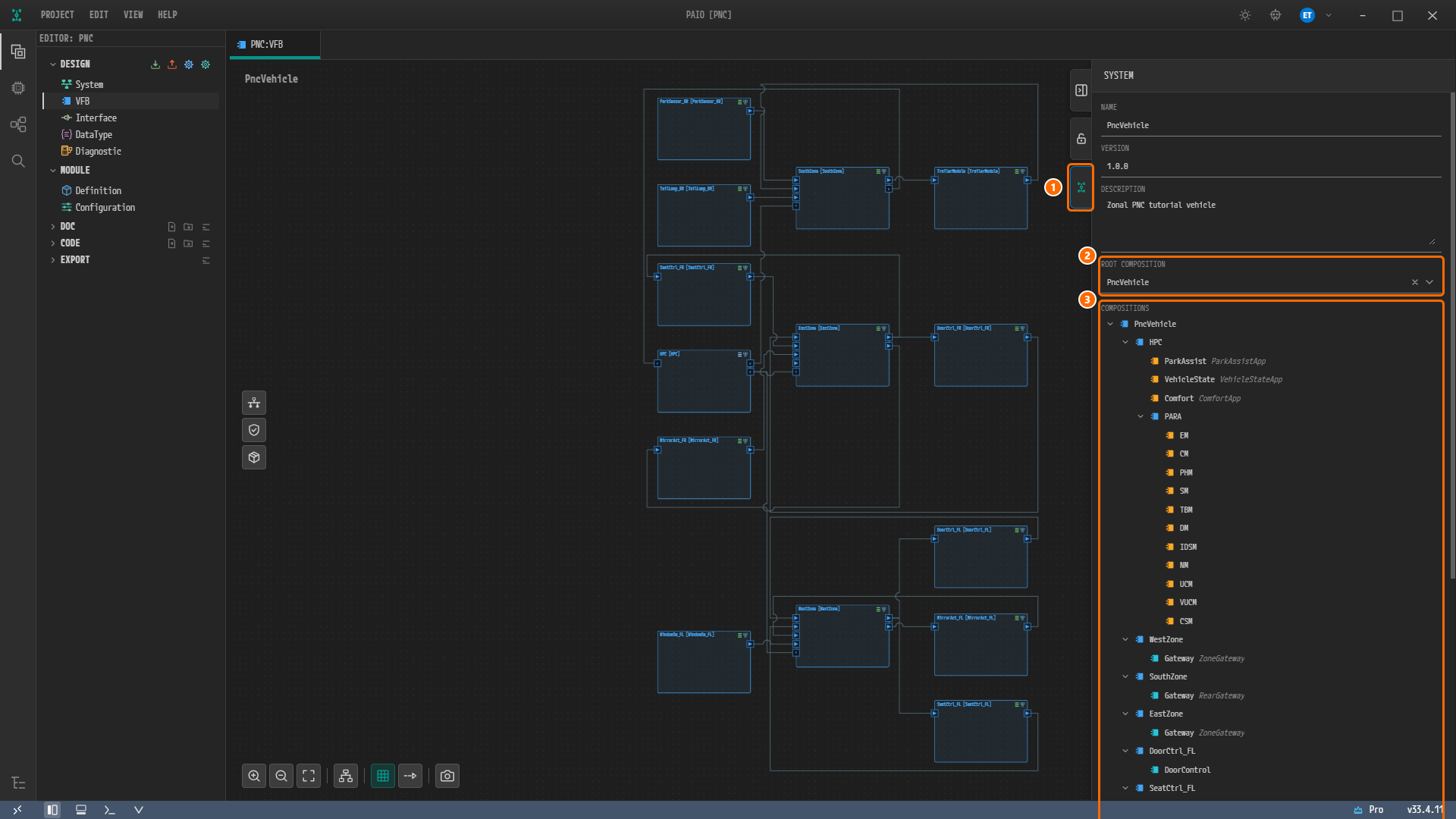
① The System button, ② ROOT COMPOSITION, ③ the COMPOSITIONS tree.
11.4.1 Row Contents
Each row shows an icon for the SWC kind, the prototype name, and the SWC type name in italics when it differs.
11.4.2 Row Kinds
The tree lists compositions and their prototypes. Hover over a row's icon to read its kind, such as COMPOSITION.
11.4.3 Navigating from the Tree
Click a composition row to drill the VFB canvas into that composition. Names cannot be edited in the tree.
11.4.4 Setting the Root Composition
- Click ROOT COMPOSITION. The candidate list opens, with the current root checked.
- Select a composition. The VFB model is restructured around the new root.
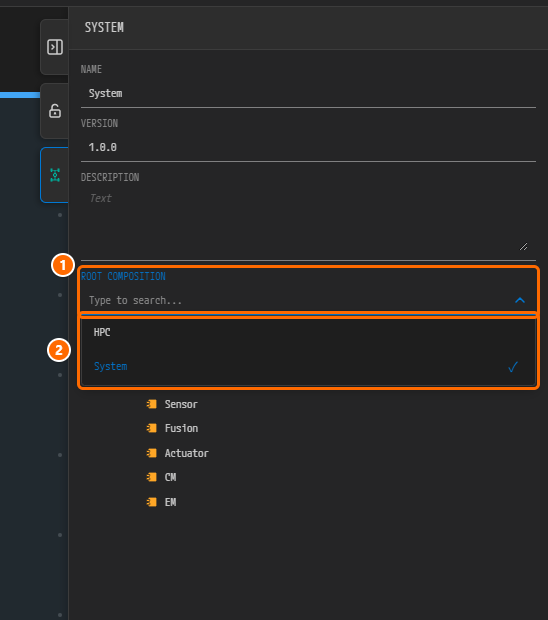
① ROOT COMPOSITION with its search field, ② the candidates, with the current root checked.
- Save the VFB editor first. With unsaved edits, the pick is refused.
- One
Ctrl+Zrestores the previous root.
11.4.5 Deploying to an ECU or HPC
Deployment is not edited in this panel. Use one of these menus. The result appears in ECU MAPPING (11.5).
- System editor: right-click an ECU or HPC node ▸ SW Mapping.
- VFB editor: right-click a top-level composition ▸ ECU/HPC Mapping.
11.5 ECU Mapping
ECU MAPPING in the System editor's panel lists the ECU and HPC nodes with the composition mapped to each. It is read-only. Click a row to select that node on the canvas. With no ECU or HPC, it shows No ECU or HPC in the diagram.
11.6 Statistics (Removed)
The statistics panel of the former System dashboard has been removed. Rule checks are in 14. Validation.
11.6.1 System Completeness
Removed. Read ECU MAPPING (11.5) instead.
11.6.2 Architecture Quality
Removed. Use 14. Validation instead.
11.7 Saving, Undo, and Shortcuts
- There is nothing to save. Each change is already written.
- Press
Ctrl+Z, or use the EDIT menu, to undo a change. - VERSION is written on every keystroke, so undo steps back one keystroke at a time.
11.7.1 External Changes and Conflicts
The panel has no unsaved state, so there is no conflict warning. Each write changes only its own field, so the two SYSTEM panels do not overwrite each other.
11.8 Integration with Other Editors
- Both SYSTEM panels edit the same system information.
- ECU MAPPING comes from the System editor canvas, and the COMPOSITIONS tree from the VFB diagram.
- Data mapping (port data element ↔ signal) is recorded in the System model but edited in 08. VFB Editor.
11.9 Common Situations
| Symptom | What to do |
|---|---|
| The SYSTEM panel disappeared | Click System again, or lock the panel |
| A NAME returns to the old name | Read the error below the field |
| A ROOT COMPOSITION pick is refused | Save the VFB editor, then pick again |